
Audio separator
Vocals and instrumental, four stems, or speech and background, from one upload.
- Runs on our server. Your upload is deleted within 24 hours.
- Space plays AB switch versions
You get every part as its own 24-bit WAV.
WAV · AIFF · FLAC · MP3 · M4A · OGG · up to 25 minutes and 500 MB
Checking your runs
Your file is processed on a cloud GPU by our processing partner and deleted there within 24 hours. We keep the results for 24 hours, keyed by the file's checksum, so a repeat in that time is free.
How it works
- What it does
- One page for the common splits: vocals and instrumental, four stems, or speech and background for video soundtracks.
- Model
- A stem model and a speech model on a cloud GPU find the voice; our server then splits your own audio with a mask, so every file keeps your stereo and the pair adds back up to the original exactly. Measured on 14 film clips with known parts (SDR): dialogue 13.8 dB, music and effects together 15.6 dB on average, where the untouched clip scores about −2 dB. Music and effects apart are a rough split (music 2.1 dB, effects 5.1 dB). Model names and licences
- Your file
- Your file is processed on a cloud GPU by our processing partner and deleted there within 24 hours. We keep the results for 24 hours, keyed by the file's checksum, so a repeat in that time is free.
The common splits, one upload
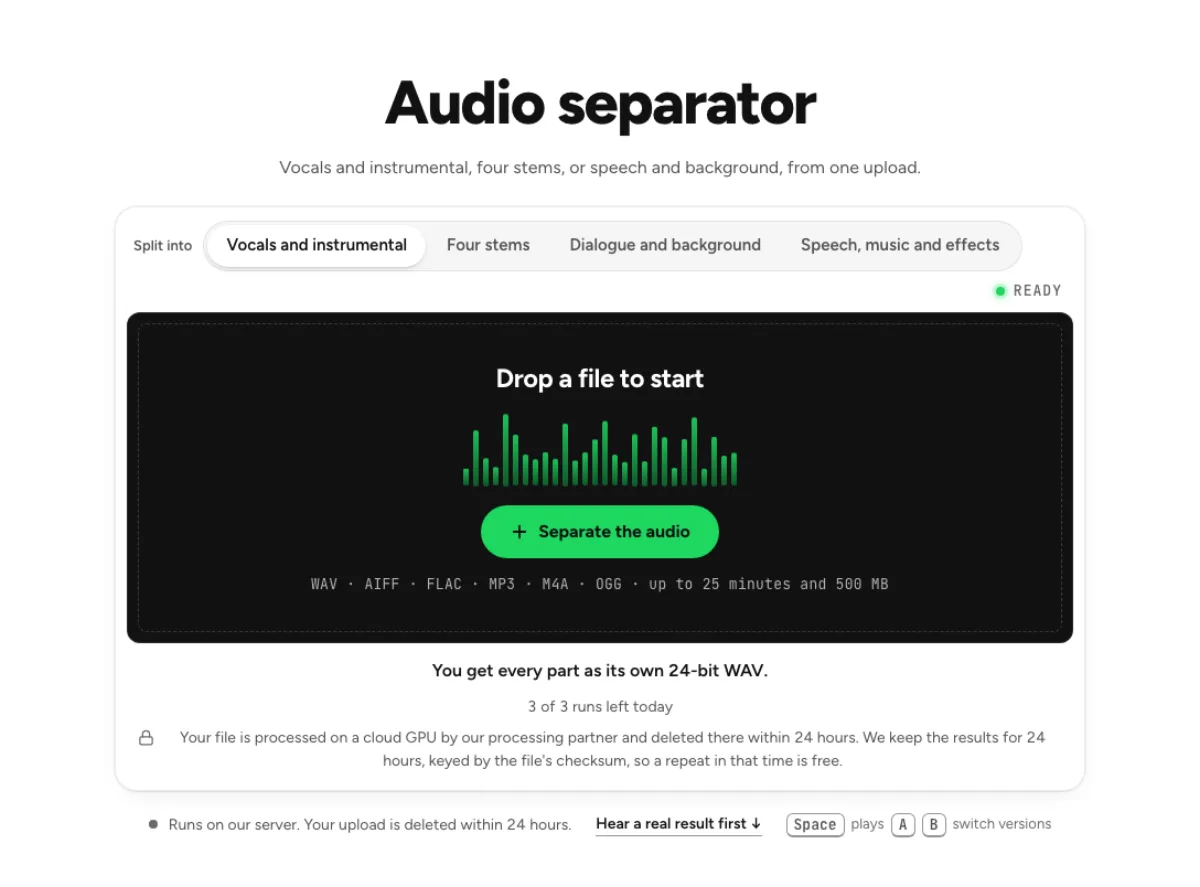
Pick the split
Vocals and instrumental, four stems, dialogue and background, or speech, music and effects. Each shows what you get before you upload. The audio separator brings song and soundtrack splitting into one place. Choose vocals and instrumental for a basic song split, four stems for musical parts, or a speech-oriented mode for a video soundtrack. The output choice matters more than the file extension: an MP3 can contain speech, and a video can contain a song.

Measured models
For songs, a separation model measured on six songs with every part known: vocals 15.3 dB SDR and instrumental 18.5 dB on average, drums 14.6, bass 13.3 dB. For soundtracks, the speech is checked against a second model. Model names are on the licences page. Measurement against known parts is a useful check on the model, but it cannot predict your exact recording. Reverb, shared harmonics, compression and dense arrangements make different parts hard to distinguish. Listen to the supplied examples and assess several sections of your own file rather than relying only on an average score.

Files that add up
The selected layers are provided as separate WAV files for listening and editing. Standard song stems can carry residual separation error when summed, while targeted complementary outputs are constructed to reconstruct their input. Keep their timing and original gains when checking either result; reconstruction and clean isolation are two different tests. Complementary files make it possible to hear what the audio separator assigned to each layer. When recombining them, preserve their starting position and original gain before making changes. This is useful for checking the split, but a mathematical sum returning the input does not mean every isolated stem is perfectly clean.
Who uses an audio separator
Musicians
A backing track to practise over, or a vocal to sample. A musician can pick a simple vocal split for singing practice or use four stems to focus on drums and bass. Start with the smallest output set that solves the task. If a particular guitar or piano part needs control, check the six-stem option and its access requirements instead of expecting it in Other.
Producers and DJs
Stems of a track for a remix, a mash-up or an edit. A producer or DJ can prepare reference stems for arrangement tests, transitions or learning a groove. Import the files together and check their timing before stretching them. An audio separator does not automatically detect the ideal new key, beat-match another track or clear the recording for sampling and publication.
Video makers
Speech and background apart, to replace the music under a clip. A video maker can isolate speech for a new soundtrack or retain the music-and-effects bed for replacement dialogue. Choose the direction deliberately so the wanted layer is not discarded. For a finished MP4 with new sound, use the dedicated video music remover; an audio-only split leaves picture assembly to your editor.
How to separate audio
Choose what to split into
Vocals and instrumental is the default. Identify the contents of the source before choosing a split. Sung lyrics and spoken dialogue can require different workflows even when both are voices. Use a representative test excerpt with a clear passage and a dense overlap, and keep the original recording unchanged for comparing the outputs.
Drop the file
Audio or video. Songs up to 25 minutes; soundtracks up to 10, 25 on Pro. After uploading, let the progress panel reach the result stage before starting another configuration. Cloud processing time depends on the selected mode, file length and model availability. Once the files arrive, the browser still needs resources to load and play them; several long open projects can make that stage slower.
Listen and download
Every part on one playhead, each as a WAV. Audition each layer with the original and check what disappeared from the rest. Download individual parts when editing elsewhere, keeping clear filenames for the selected configuration. If the result needs noise cleanup, key changes or mastering, apply those later on copies so you can identify which stage affected the sound.
Questions about audio separation
Which split should I pick for a song?
Vocals and instrumental for karaoke or an acapella; four stems when you need drums or bass on their own. The most useful choice follows the deliverable. A vocal for editing needs a different inspection from a drumless practice track, and neither requires the uncertain split between music and sound effects in a film scene.
Can it pull out a violin or a synth?
Violin, strings and winds have their own pages: the violin extractor, the string instrument remover and the wind instrument remover. Synths are not offered yet; the Pro separation page says why. The targeted pages explain their own group definitions and limitations. A request for every string instrument is different from one violin, and a synth-heavy electronic song should not be treated as a proven synthesizer-removal use case.
Does a repeat cost a run?
An identical file with the same processing configuration can return from an available cache without another run. The cache is temporary, so it is not a permanent promise that every future upload will be free. A different split or changed source may be a new job; check the current allowance before starting it. Keep useful files locally and record which split produced them. This makes later comparisons meaningful and avoids relying on a temporary online result as the only copy of an important reference.
What should I check after using this audio separator workflow?
Listen to chosen audio layers and complementary layers, rather than judging just one file. The difficult cases include mixing up musical stems with dialogue and soundtrack layers. Compare an exposed passage, a busy section and the tail of a sustained sound at the same musical moment. A result can work for practice while being too rough for an isolated production use. Choose based on the sound you will actually deliver, and keep the original nearby when a note, word or effect is uncertain.
What source recording should I use?
Start with the cleanest version you already have and avoid repeated lossy conversions. Saving a damaged recording as WAV does not restore the detail it lost. Excessive EQ, clipping or added reverb before separation can make the task harder. Keep the original and work on a copy so later comparisons remain meaningful. To choose between nearby tools, describe the deliverable in one sentence: a vocal for a remix, a drumless backing for rehearsal, or a voice track for a video. Then choose the output that matches that sentence. This avoids processing a full set of stems when one complementary pair would answer the question.
How do file length, plan access and cloud runs work?
Targeted separation allows up to 10 minutes without a paid plan and 25 minutes on Pro; the chosen mode and uploader show the applicable limit. Piano and guitar isolation require the paid six-stem option. The current catalog allows 3 runs daily anonymously, 10 monthly for signed-in free users, 80 monthly on Pro and 150 on Pro+. Each new file and processing configuration uses the relevant allowance; an identical result can be free while cached. Check the current pricing and the uploader before processing a batch. Downloads are part of the result, not a separate per-file unlock.
Is this separation performed entirely on my device?
No. This is cloud separation: audio is uploaded for processing on external infrastructure. Browser playback, comparison and some exports happen locally after the results arrive, which does not make the separation itself offline. Check the Privacy Policy before submitting sensitive material, and use an appropriate local workflow if audio must stay entirely on your device. Download useful outputs while available; temporary results and cached repeats are not a permanent archive.
Can I publish or share the separated result?
Separation changes the balance of a recording, not its ownership or the permissions attached to it. Use material you own or are otherwise entitled to adapt, and arrange the permissions needed for your intended publication. A separated result does not include a licence to a commercial song, performance or soundtrack. For your own project, keep the source, an untouched separation and a separate delivery copy. Listen again in the complete mix before sharing; an acceptable rehearsal reference may reveal artefacts when exposed alone.