
Remove background music from video
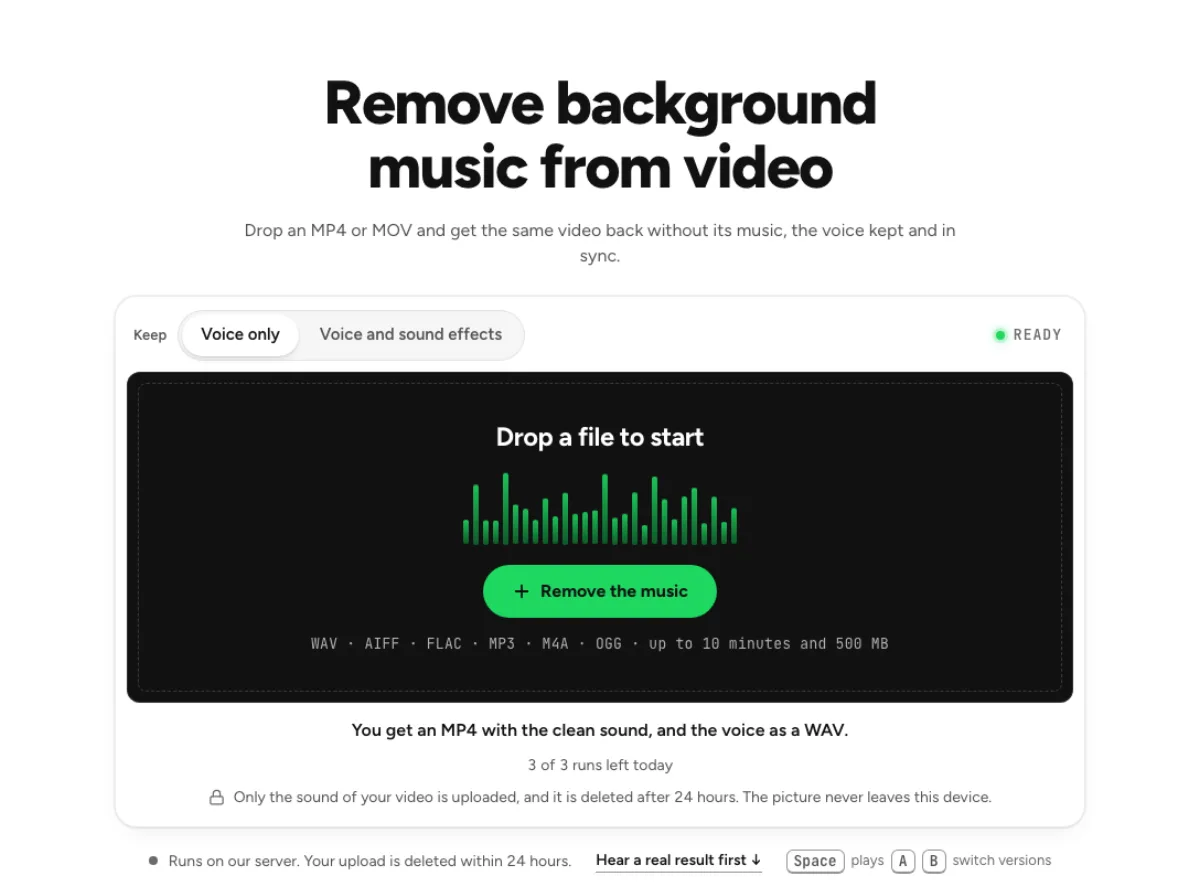
Drop an MP4 or MOV and get the same video back without its music, the voice kept and in sync.
- Runs on our server. Your upload is deleted within 24 hours.
- Space plays AB switch versions
You get an MP4 with the clean sound, and the voice as a WAV.
WAV · AIFF · FLAC · MP3 · M4A · OGG · up to 10 minutes and 500 MB
Checking your runs
Only the sound of your video is uploaded, and it is deleted after 24 hours. The picture never leaves this device.
How it works
- What it does
- Reads the sound from your MP4 or MOV in this browser, takes the music out in the cloud, then copies your picture untouched into a new MP4 with the clean sound starting at the same moment.
- Model
- A stem model and a speech model on a cloud GPU find the voice; our server then splits your own audio with a mask, so every file keeps your stereo and the pair adds back up to the original exactly. Measured on 14 film clips with known parts (SDR): dialogue 13.8 dB, music and effects together 15.6 dB on average, where the untouched clip scores about −2 dB. Music and effects apart are a rough split (music 2.1 dB, effects 5.1 dB). Model names and licences
- Measured
- Same separation as the dialogue remover: on 14 film clips with known parts the voice measured 13.8 dB SDR on average. The new sound lines up with the picture to the sample.
- Your file
- Only the sound of your video is uploaded, and it is deleted after 24 hours. The picture never leaves this device.
Your video, without the music
The picture never leaves your device
Your browser reads the sound out of the MP4 or MOV and uploads only that, in seconds instead of minutes. To remove background music from video, this page reads the soundtrack from a supported MP4 or MOV in your browser. The audio is sent for cloud separation while the picture remains on the device. Keep the source video available until export finishes, because the browser needs its frames to assemble the new file.

Picture copied, not re-encoded
The new MP4 carries your original video frames untouched, with the clean sound starting at the same moment as the old one. We measured the sound in sync within 0.1 ms. The export copies the existing video frames rather than generating a new picture, so this operation does not improve resolution or repair a damaged image. Only the soundtrack is replaced and encoded for the new MP4. Check the complete export in your intended player, especially when the source uses an unusual codec or timing arrangement.

Voice, or voice and effects
Keep only the voice, or the voice with footsteps, doors and room sounds. The effects split is rougher, so some music can stay. Choose voice alone when clear speech is the priority, or voice with effects when footsteps, doors or ambience matter to the scene. The effects distinction is less reliable and can retain some music. Compare both where offered, listening to spoken words as well as the atmosphere that supports the picture.
Who needs music taken out of a video
Creators hit by a copyright claim
Take the claimed track out of a vlog or a tutorial and keep what you said. A creator responding to a music claim can prepare a version with the soundtrack reduced while retaining narration. That does not guarantee a claim disappears: another part of the recording may still be recognized, and the underlying rights remain relevant. Review the platform's actual response and use licensed replacement music when publishing a new version.

Editors re-scoring a clip
Drop the old music and lay a licensed track under the same dialogue. An editor re-scoring a clip can keep the existing dialogue and place a new track underneath it in an editor. Preview the dialogue at scene transitions before replacing the music throughout. If effects are important, assess the voice-plus-effects option rather than assuming the voice-only result preserves every footstep and room sound.

Teachers and trainers
Make a lecture or a screen recording easier to follow without its music bed. A teacher can reduce a distracting music bed in a lecture or training clip so learners can follow the spoken explanation. Check terms, names and quiet final syllables against the original. If words were already masked beyond intelligibility, recording replacement narration can be more effective than expecting separation to invent the missing speech.
How to remove background music from a video
Drop the video
MP4 or MOV with H.264 or HEVC video, up to 10 minutes, 25 on Pro. Select an MP4 or MOV using a supported H.264 or HEVC video stream and check the displayed length limit. Keep enough free device memory for reading and writing the export. If the browser cannot handle the video, extracting and separating its audio for a desktop editor is a practical alternative.
Wait for the separation
The sound is separated in the cloud, then this browser writes the new MP4. The browser prepares the soundtrack, cloud processing separates it, and the browser then writes the new MP4. Keep the tab and original file available through all stages. A completed audio result is useful even when video export is unsupported; download the voice WAV and put it back under the picture in your editor.
Compare and download
Switch between Before and After at the same moment, then download the MP4, or the voice as a WAV. Compare Before and After at the same scene position, then play the exported MP4 from the beginning and near the end. Check lip sync, ambience and the first audible word. Save the clean audio separately when you may need another edit, and retain the original video as your source master.
Questions about removing music from video
Does the video lose quality?
No: the video frames are copied as they are. Only the sound is new, encoded at 192 kbit/s. This preserves the existing picture rather than improving it. Source artifacts, resolution and frame content remain, and a new soundtrack still needs checking in the device or application where the MP4 will be played.
Will the voice stay in sync?
Yes. The new sound starts where the old sound started; on our test video the offset measured 0.1 ms. The measured test shows the intended alignment, not a universal promise about every unusual input. Inspect the exported beginning and a later visible sound cue, especially before handing a long clip to someone else.
What if my browser cannot write video?
You still get the clean voice as a WAV to put back in your editor. Chrome, Edge and Safari write the MP4 directly. A WAV plus the original picture gives an editor the same essential materials for a manual replacement. Preserve the audio start offset and check a later cue too, rather than assuming the first aligned syllable proves the whole timeline.
What should I check after removing background music from video?
Listen to speaking voice, optionally with effects and removed music, rather than judging just one file. The difficult cases include music overlapping speech and the rough voice-plus-effects option. Compare an exposed passage, a busy section and the tail of a sustained sound at the same musical moment. A result can work for practice while being too rough for an isolated production use. Choose based on the sound you will actually deliver, and keep the original nearby when a note, word or effect is uncertain.
What source recording should I use?
Start with the cleanest version you already have and avoid repeated lossy conversions. Saving a damaged recording as WAV does not restore the detail it lost. Excessive EQ, clipping or added reverb before separation can make the task harder. Keep the original and work on a copy so later comparisons remain meaningful. When replacing the soundtrack manually, keep its original start offset and verify a clear visible cue such as a clap or a spoken consonant. A correct match at the first frame alone is not enough for a long clip. Check a later cue too before publishing or handing the video to a client.
How do file length, plan access and cloud runs work?
Targeted separation allows up to 10 minutes without a paid plan and 25 minutes on Pro; the chosen mode and uploader show the applicable limit. The current catalog allows 3 runs daily anonymously, 10 monthly for signed-in free users, 80 monthly on Pro and 150 on Pro+. Each new file and processing configuration uses the relevant allowance; an identical result can be free while cached. Check the current pricing and the uploader before processing a batch. Downloads are part of the result, not a separate per-file unlock.
Is this separation performed entirely on my device?
No. This is cloud separation: audio is uploaded for processing on external infrastructure. Browser playback, comparison and some exports happen locally after the results arrive, which does not make the separation itself offline. The picture remains on your device in this video workflow, while its soundtrack is processed in the cloud. Check the Privacy Policy before submitting sensitive material, and use an appropriate local workflow if audio must stay entirely on your device. Download useful outputs while available; temporary results and cached repeats are not a permanent archive.
Can I publish or share the separated result?
Separation changes the balance of a recording, not its ownership or the permissions attached to it. Use material you own or are otherwise entitled to adapt, and arrange the permissions needed for your intended publication. A separated result does not include a licence to a commercial song, performance or soundtrack. For your own project, keep the source, an untouched separation and a separate delivery copy. Listen again in the complete mix before sharing; an acceptable rehearsal reference may reveal artefacts when exposed alone.