
Equalizer
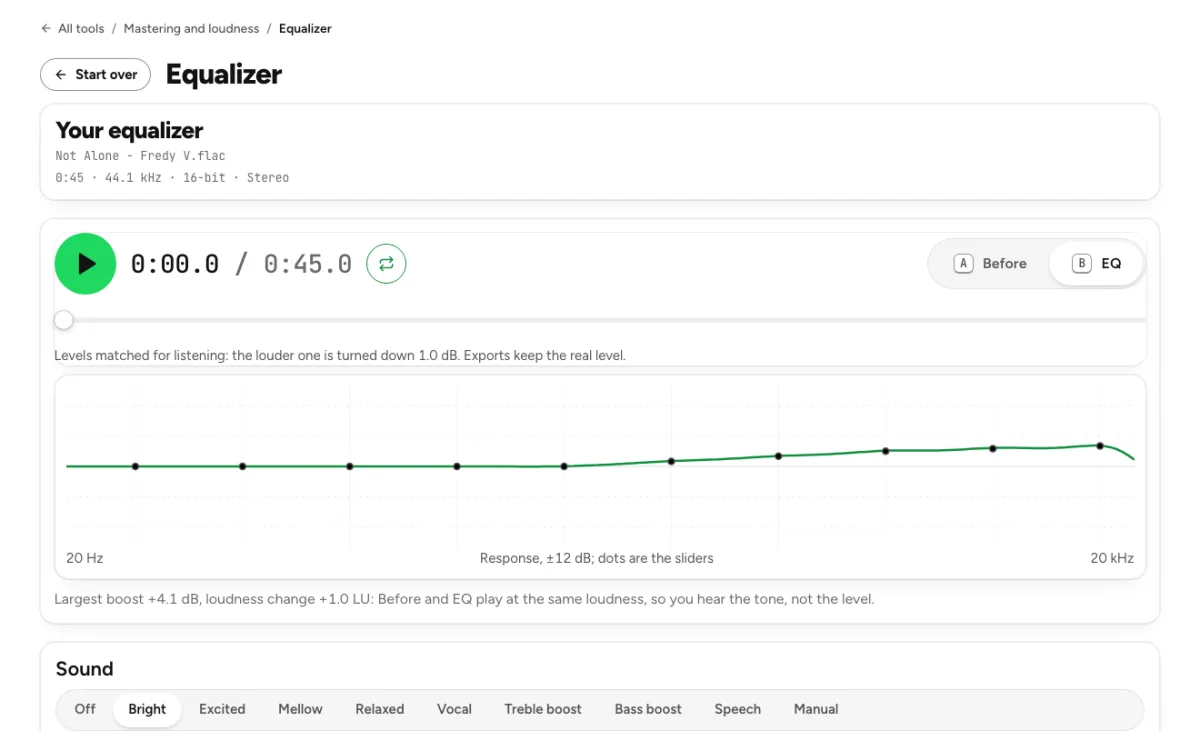
Presets such as Bright, Vocal, Bass boost and Speech, or ten bands of your own, heard live at the same loudness as the original.
- Runs in your browser. Nothing is uploaded.
- Space plays AB switch versions
You get your file with the EQ as WAV or FLAC, at its own sample rate and length.
WAV · AIFF · FLAC · MP3 · M4A · OGG · up to 15 minutes and 600 MB
Runs in your browser. Nothing is uploaded.
How it works
- What it does
- Shape the sound of a song or a voice recording with presets such as Bright, Vocal, Bass boost and Speech, or set ten bands yourself. Hear it live against the original at the same loudness, then download it at the original's loudness.
- How it works
- Ten bands an octave apart, 31 Hz to 16 kHz. Each is a peaking filter whose gain and width are solved together, so the curve meets every slider within 0.9 dB even when neighbouring bands move (a plain bank of separate filters misses by up to 6 dB). The preview runs the same filters live in your browser and turns the louder of the two down to match, because a louder version always sounds better at first. The download is rendered from your file at its own sample rate, brought back to the original's loudness and limited at −1 dBTP. Nothing is uploaded.
Change tone with a comparison you can trust
Presets as a starting point
Bright, Mellow, Vocal, Bass boost and Speech are different starting curves, not automatic diagnoses of your recording. Choose a direction that fits the problem, then reduce the preset strength if the first result sounds exaggerated. A dark recording may need a small lift; an already sharp vocal may need the opposite. The equalizer processes the complete signal, so a boost intended for a singer also affects cymbals, guitars and other sounds occupying the same frequencies.
Hear tone without the loudness advantage
The preview matches the comparison level so a boosted version cannot win simply by playing louder. Switch between Before and EQ on the same passage and listen for a specific improvement: clearer words, less boxiness or a better bass balance. A fair comparison may initially sound less dramatic than an unmatched boost. That is useful. It makes subtle tonal choices easier to judge before you decide how the processed file should be leveled for export.

Ten bands and practical headroom
The graphic equalizer gives ten octave-spaced bands from 31 Hz to 16 kHz, with a low cut and bass shelf for additional shaping. Neighboring bands interact as a curve rather than ten unrelated loudness switches. Large boosts can demand headroom, so the export offers original-loudness matching or a headroom-preserving option. The page explains when it holds the output slightly below the original level instead of forcing excessive peak limiting. Treat those meters as feedback while you listen. Off is also a useful reference choice. Returning to the untouched curve after several adjustments can reveal that the source already had the balance you wanted. Save a custom setting only after testing it on the intended recording; a curve that helps one microphone or mix may be inappropriate for another. A preset name describes its broad direction, while the source’s actual spectrum determines what the listener hears. Keep that distinction when sharing an EQ recommendation with a collaborator.
Who uses a browser equalizer
Listeners adapting a recording
A warmer or brighter version can suit a particular listening situation, but an exported EQ curve becomes part of the file everywhere you play it. Compare on headphones as well as the speakers that motivated the change. A strong bass lift that helps tiny speakers can overwhelm a system with deeper bass. Start gently and keep the source file so you can return to the original balance when your playback equipment or listening room changes.

Podcasters clarifying speech
The Speech preset provides a starting point for rumble, low-mid boom and presence. Listen to whole sentences after changing it, including breaths and consonants, because added clarity can also emphasize hiss or harshness. Equalization changes frequency balance; it does not separate a voice from a noisy background. If the main issue is a fan, traffic or room noise, use an appropriate cleanup tool first and then make a small tonal adjustment to the cleaned recording.

Musicians testing mix decisions
Use a quick EQ pass to investigate a mix before reopening the session. If a small low-mid cut helps consistently, that can suggest where to inspect the arrangement or individual tracks later. The stereo master remains a combined signal, so this tool cannot turn down only a bass guitar or isolate a snare. For precise instrument work, return to the multitrack session. Keep the browser EQ as a fast listening test or a modest finishing adjustment.
How to equalize an audio file
Load a supported recording
Choose your song or voice recording and wait for the file to be read locally. The equalizer accepts recordings within the duration and size limits displayed above the controls. Use the demo if you want to understand the comparison first. Check a representative section before adjusting anything: if the source is distorted or already has excessive bass, adding more processing may hide the actual problem. Keep the original file separately for a reliable reference.
Adjust one audible problem at a time
Select a preset, listen to the matched comparison and move a band only when you can describe why. Lowering a problem region can work better than boosting everything around it. Use the low cut cautiously on music with deep bass, and check the body of a voice after reducing low frequencies. Make small changes, revisit the original and try another section. A setting that flatters a sparse introduction may be too aggressive once the arrangement becomes busy.
Choose a level and export
When the tonal balance works, choose whether to match the original loudness or keep additional headroom. The matching option uses guarded peak limiting; the headroom option reduces level to accommodate boosts. Read the result rather than assuming both options sound equally loud. Export a supported lossless format for further editing, then audition the downloaded file. If you also need a different distribution format, make that conversion from the finished version rather than repeatedly transcoding working copies.
Equalizer controls and export questions
Is this an automatic mastering tool?
No. The equalizer changes frequency balance using the curve you select. It does not decide the complete mastering chain for you or isolate individual instruments. The mastering workspace offers a broader set of controls and comparisons. Use this page when you want to make and understand a specific tonal change, such as reducing boom or testing a brighter balance.
Why is the boosted version not louder in the preview?
The preview compensates for the expected loudness change so you compare tone at a similar listening level. That helps avoid preferring an EQ setting only because it adds gain. The export level is a separate choice. Read the selected download-level option to understand whether the saved file matches the source loudness or retains more headroom.
Can EQ remove background noise?
It can reduce a frequency region containing unwanted sound, but it also changes wanted audio in that region. A low cut can help with low rumble; it cannot selectively erase a fan while leaving overlapping voice frequencies untouched. For broader noise reduction, start with the relevant noise-removal tool and use the equalizer afterward for a restrained tonal correction.
What happens if I boost several bands heavily?
The combined curve can create peaks that need extra headroom. The export settings account for that with attenuation or guarded limiting, but extreme curves may still sound unnatural or tiring. Reduce the strength, compare the original and check another passage. A safe digital peak does not mean every tonal decision is pleasant or appropriate for the recording.
Are the presets copied from a particular headphone model?
No. These are the tool’s own preset curves. A label such as Bass boost describes the direction of the change, not an exact match to a proprietary headphone setting or a measured correction profile. If you need calibration for specific headphones or a room, use a correction designed and measured for that equipment rather than treating a general music preset as calibration.
Which export should I choose for another editing step?
WAV or FLAC keeps the rendered audio in a lossless format. The page offers the supported bit depths at the source sample rate. Choose according to the receiving application’s requirements and keep a copy before any final lossy delivery encode. Changing the container or increasing bit depth does not restore detail that was already lost in the source recording.
Is the file processed on a server?
No. The equalizer preview and rendering run in your browser, and the audio is not uploaded for this local operation. Your device handles decoding and exporting, so larger files need more memory and time. Keep the tab open while an export completes. A separate cloud cleanup or separation tool has different behavior and should be considered separately.
How do I know when I have changed too much?
Switch back to the original after a short break and listen at a comfortable level. Check whether voices still sound natural, bass notes remain distinguishable and bright sounds avoid becoming brittle. Test several sections and another playback system when possible. If you cannot identify a repeatable improvement at matched level, reduce the adjustment or keep the original version.