
Background music remover
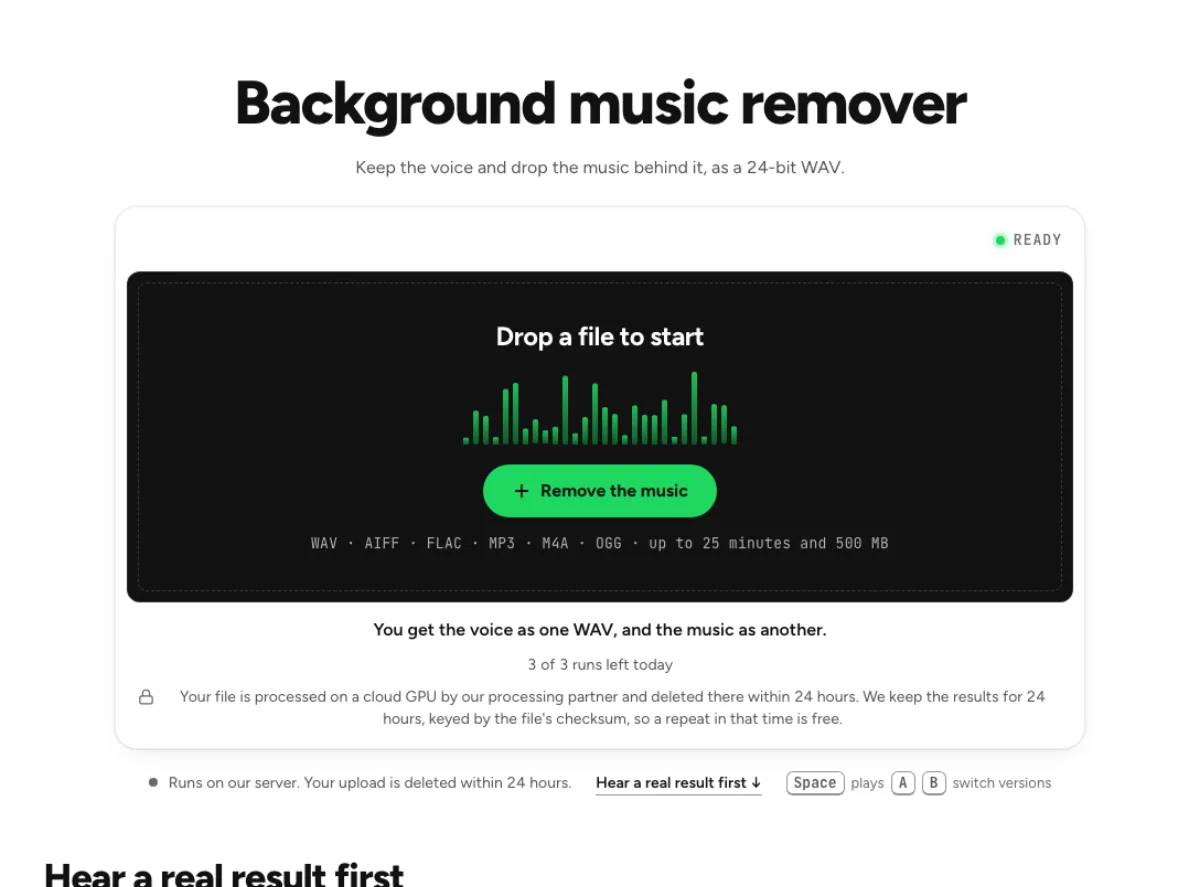
Keep the voice and drop the music behind it, as a 24-bit WAV.
- Runs on our server. Your upload is deleted within 24 hours.
- Space plays AB switch versions
You get the voice as one WAV, and the music as another.
WAV · AIFF · FLAC · MP3 · M4A · OGG · up to 25 minutes and 500 MB
Checking your runs
Your file is processed on a cloud GPU by our processing partner and deleted there within 24 hours. We keep the results for 24 hours, keyed by the file's checksum, so a repeat in that time is free.
How it works
- What it does
- Keep the voice and drop the music behind it. Made for speech over a soundtrack; the voice comes back as a 24-bit WAV.
- Model
- A separation model on a cloud GPU splits the song; two stems are the average of a two-stem and a six-stem pass. Measured on six songs with every part known (SDR, higher is better; the untouched song scores −3 to −5 dB): vocals 15.3 dB and instrumental 18.5 dB on average; drums 14.6, bass 13.3, guitar 11.5 dB; piano 4.7 dB as a quiet layer, 12 to 17 dB when it leads. Nothing is clipped, and the files keep your sample rate. Model names and licences
- Output
- One 24-bit WAV per stem at your file's own sample rate. A stem that peaks past full scale (a loud master) comes as 32-bit float instead, so nothing is clipped. Vocals and instrumental add back up to your file at −108 to −114 dB on our test songs; the song without a stem is made from the others and adds back up with it exactly.
- Time
- About 15 s of GPU time for a 45-s excerpt at standard quality, plus 1 to 3 minutes the first time while the model starts.
- Your file
- Your file is processed on a cloud GPU by our processing partner and deleted there within 24 hours. We keep the results for 24 hours, keyed by the file's checksum, so a repeat in that time is free.
Pull a voice out from behind music
Made for speech
This page is set up for speech over a soundtrack, such as a narrated clip or an interview with a music bed. The voice comes back as its own 24-bit WAV. Choose the background music remover for a spoken recording with music behind it, such as narration over a track or an interview with a music bed. The aim is to make the voice easier to use separately. This page returns audio files; the dedicated video page is the easier route when you need a rebuilt video.

Music kept too
The music comes out as a second WAV instead of being thrown away. Listen to it to check that no words went with it. Listening to the removed music is a useful quality check, not just an optional extra. If you hear whole words there, compare those words with the voice file before editing. A quiet trace of speech in the music may matter less than a missing syllable in an interview you need to understand accurately.

Duck or drop
Adjust the mix gives voice and music their own faders. Lower the music by 15 dB instead of removing it, then export WAV or FLAC. Sometimes lowering the music works better than removing it completely. A podcast introduction may still need its identity, while the voice needs more room. Try a quieter music balance and listen to the sentence endings, where softer speech is easiest to mask. Save the original audio so you can revise that balance later.
Who needs music gone from a recording

Podcasters
Rescue an interview recorded with a radio or a playlist running behind you, and keep the voice as a 24-bit WAV. A podcaster can recover a cleaner spoken introduction or rebalance a guest segment mixed with music. Check the loudest guest and the quietest guest separately; one setting may reveal different artefacts for each. Keep original interview audio when available, because a direct microphone recording is usually a stronger source than a finished mix.
Clip editors
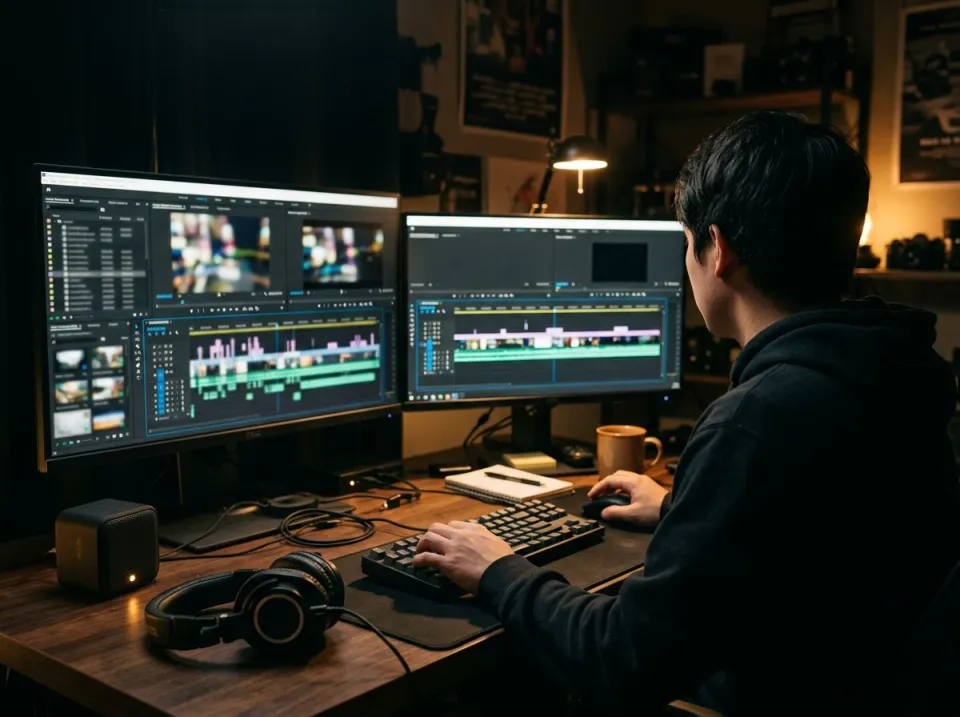
Pull the narration out of a clip, then lay a licensed track under it in place of the old one. A clip editor can prepare narration for a new licensed soundtrack without starting from the finished video mix. Export the audio from the editor or use the video music remover directly. When replacing sound manually, align the first spoken consonant and confirm that the end of the clip remains synchronized.
Interview transcribers
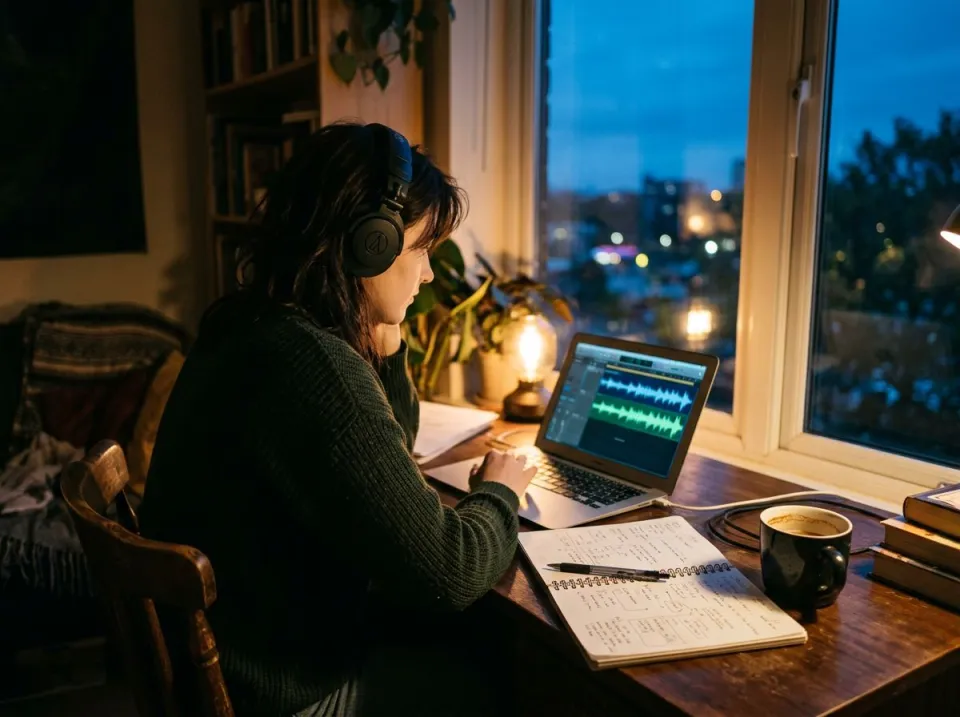
Clear the music from a recording so the words are easier to follow while you type them up. A transcriber can use the clearer voice as an aid when music obscures a phrase. Verify names, numbers and quotations against the original recording before treating them as settled. The background music remover separates audio; it does not produce an authoritative transcript or recover words that were inaudible in the source.
How to remove background music from a voice recording
Export the sound
The box lists WAV, AIFF, FLAC, MP3, M4A and OGG, so take the audio out of a video first, keeping it under 25 minutes. Choose an audio export with no extra normalization or unnecessary lossy conversion. If the speech has long quiet passages, include enough surrounding sound to recognize the intended context. This workflow is for separating a music layer; use noise removal afterwards only when steady hiss or other unwanted noise remains.
Upload for separation
Uploading sends the recording to Replicate, where the copy lasts no longer than 24 hours. Voice, Music and Original then appear on one player. Let the cloud separation finish, then audition both the voice and removed music. Start at a normal listening level so a louder voice does not create a false impression of clarity. Check transitions into and out of the music bed, where the background music remover has to handle a changing mixture.
Keep the voice
Click Download voice for the speech and Download music for the rest. Both are WAV files at the original level. Download the voice and retain the music reference until the edit is approved. For a video timeline, replace only the intended audio layer and verify synchronization across the whole clip. If you also apply denoising, compare each stage separately so you can tell whether the separation or the later cleanup affected a word.
Questions about taking music out from under a voice
Can I remove background music from a video?
Yes, once the sound is an audio file. Export it from your editor first, because this page returns audio and you put it back under the picture yourself. If the desired delivery is a finished video, the video music-removal page keeps the picture locally and rebuilds a supported MP4. For manual editing, retain the source video and align the clean voice with the original audio start.
Will it also take out hiss and room noise?
No, that is not this tool's job. Run the voice WAV through the noise remover or the speech enhancer afterwards. Listen to the music-free voice before applying a second process. Additional cleanup may help a remaining hiss, but it can also change consonants or ambience; compare the separate stages so the source of an artefact is clear.
What does a demo of this sound like?
A Gettysburg Address reading mixed over a Lee Rosevere track for this demo, with voice at −20 LUFS. Hear the difference plays 25 s of the real output. The demo gives a concrete reference for speech over a music bed, not a guarantee about every interview. A voice with room reflections or music louder than the words is a harder source than a clean narration mixed over a track.
What should I check after using this background music remover workflow?
Listen to speaking voice and removed music bed, rather than judging just one file. The difficult cases include music that overlaps speech and words masked before recording. Compare an exposed passage, a busy section and the tail of a sustained sound at the same musical moment. A result can work for practice while being too rough for an isolated production use. Choose based on the sound you will actually deliver, and keep the original nearby when a note, word or effect is uncertain.
What source recording should I use?
Start with the cleanest version you already have and avoid repeated lossy conversions. Saving a damaged recording as WAV does not restore the detail it lost. Excessive EQ, clipping or added reverb before separation can make the task harder. Keep the original and work on a copy so later comparisons remain meaningful. For interviews with music played in the same room, reverberation ties the voice and soundtrack together more tightly than a clean studio voiceover. Expect less complete separation. If the spoken content is important, record a new clean narration when possible rather than using increasingly aggressive processing on an already masked phrase.
How do file length, plan access and cloud runs work?
The cloud processing limit is up to 25 minutes per file, with file size and mode access also checked before a run starts. The current catalog allows 3 runs daily anonymously, 10 monthly for signed-in free users, 80 monthly on Pro and 150 on Pro+. Each new file and processing configuration uses the relevant allowance; an identical result can be free while cached. Check the current pricing and the uploader before processing a batch. Downloads are part of the result, not a separate per-file unlock.
Is this separation performed entirely on my device?
No. This is cloud separation: audio is uploaded for processing on external infrastructure. Browser playback, comparison and some exports happen locally after the results arrive, which does not make the separation itself offline. Check the Privacy Policy before submitting sensitive material, and use an appropriate local workflow if audio must stay entirely on your device. Download useful outputs while available; temporary results and cached repeats are not a permanent archive.
Can I publish or share the separated result?
Separation changes the balance of a recording, not its ownership or the permissions attached to it. Use material you own or are otherwise entitled to adapt, and arrange the permissions needed for your intended publication. A separated result does not include a licence to a commercial song, performance or soundtrack. For your own project, keep the source, an untouched separation and a separate delivery copy. Listen again in the complete mix before sharing; an acceptable rehearsal reference may reveal artefacts when exposed alone.