
Stem splitter
Drums, bass, vocals and everything else as separate files. Pick a stem and see how little of the full mix it is.
- Loudness
- −17.5 → −21.2 LUFS
Master a bounce at matched loudness, pull parts out of an old mix, turn a melody into MIDI and make a sample from a sentence, with the numbers printed next to each result.
Real output from these tools. Press play, then switch between before and after.
Drums, bass, vocals and everything else as separate files. Pick a stem and see how little of the full mix it is.
The song without its piano, for playing along.
A home recording of a poem, with its own hiss. Listen to the gaps between words.
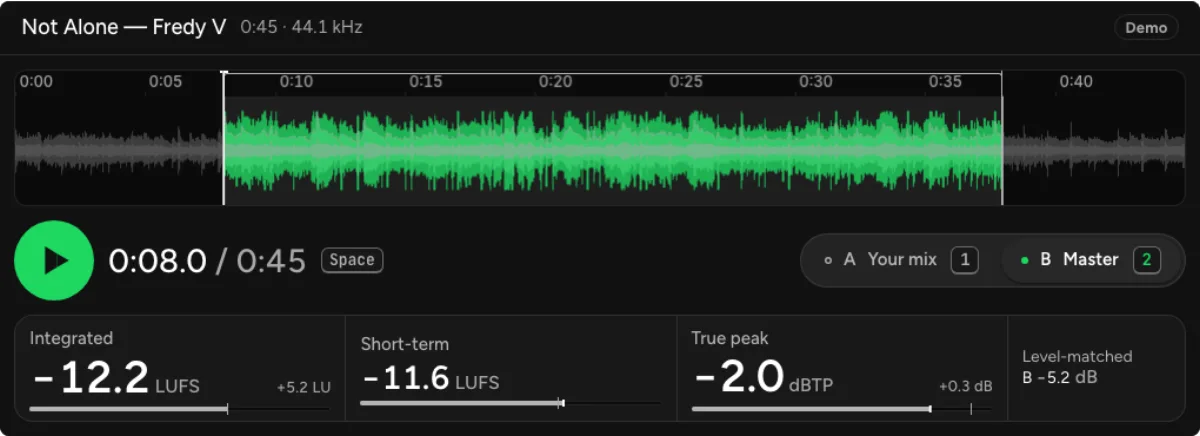
Open the mastering studio with a finished mix and make an initial version using the local processing controls. Compare it with the source at matched loudness so an increase in volume does not hide an unwanted change in tone or dynamics. EQ, compression, metering and rendering operate on your device; optional AI prompt interpretation and cloud tools have a separate network workflow. Inspect the changes and keep the version that supports the arrangement. A master cannot repair every mix problem. If the vocal is buried or a snare is already clipping, return to the mix rather than pushing the master harder. Save a lossless source before making delivery files.
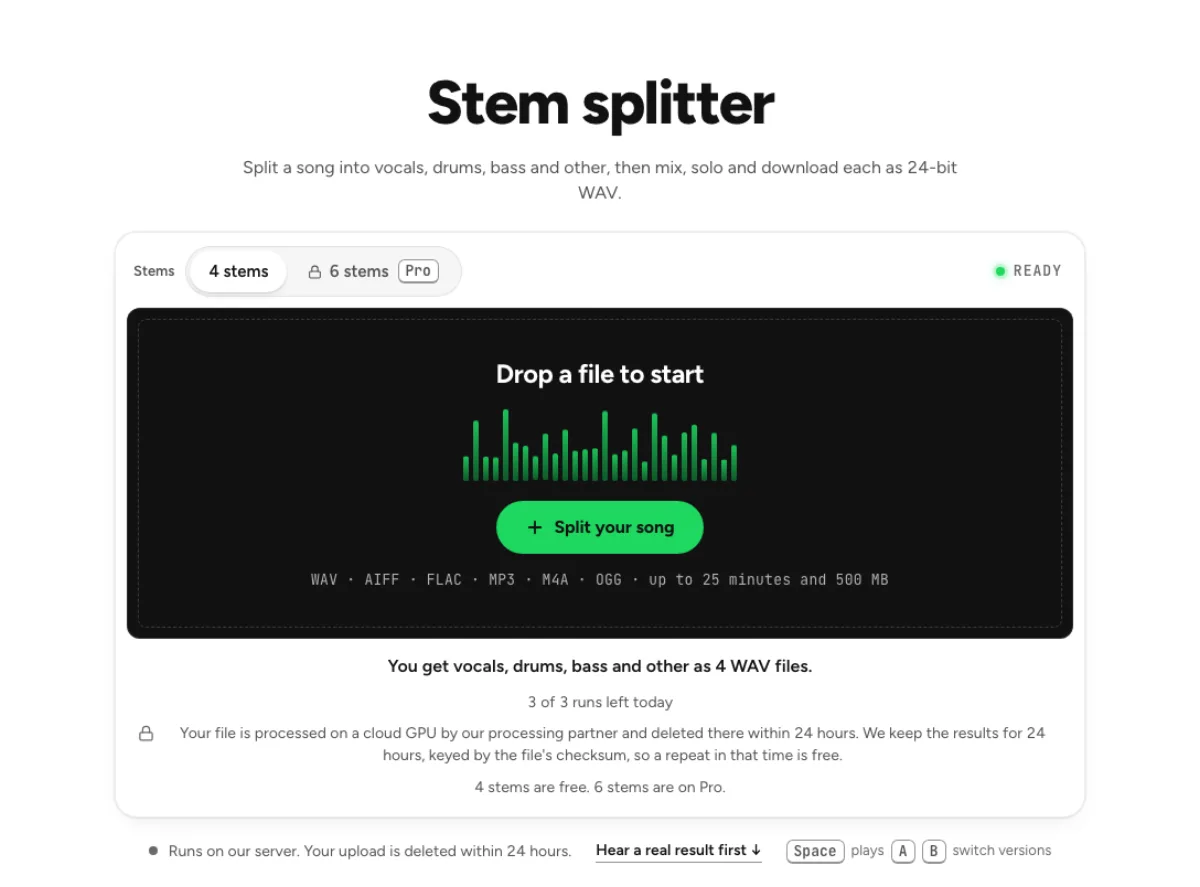
Use stems to study an arrangement, prepare a remix or work around a source whose original session is unavailable. Start with the part you actually need: a four-stem split can be enough for vocals, drums, bass and the remaining instruments, while more detailed options depend on the tool and plan. Listen to the result solo and inside the intended mix. Model output is an estimate of the source parts, so spill, reverb tails and softened attacks can remain. Keep track of timing and sample rate when moving exports into a DAW. Technical access to a stem does not grant permission to release the underlying composition or recording.
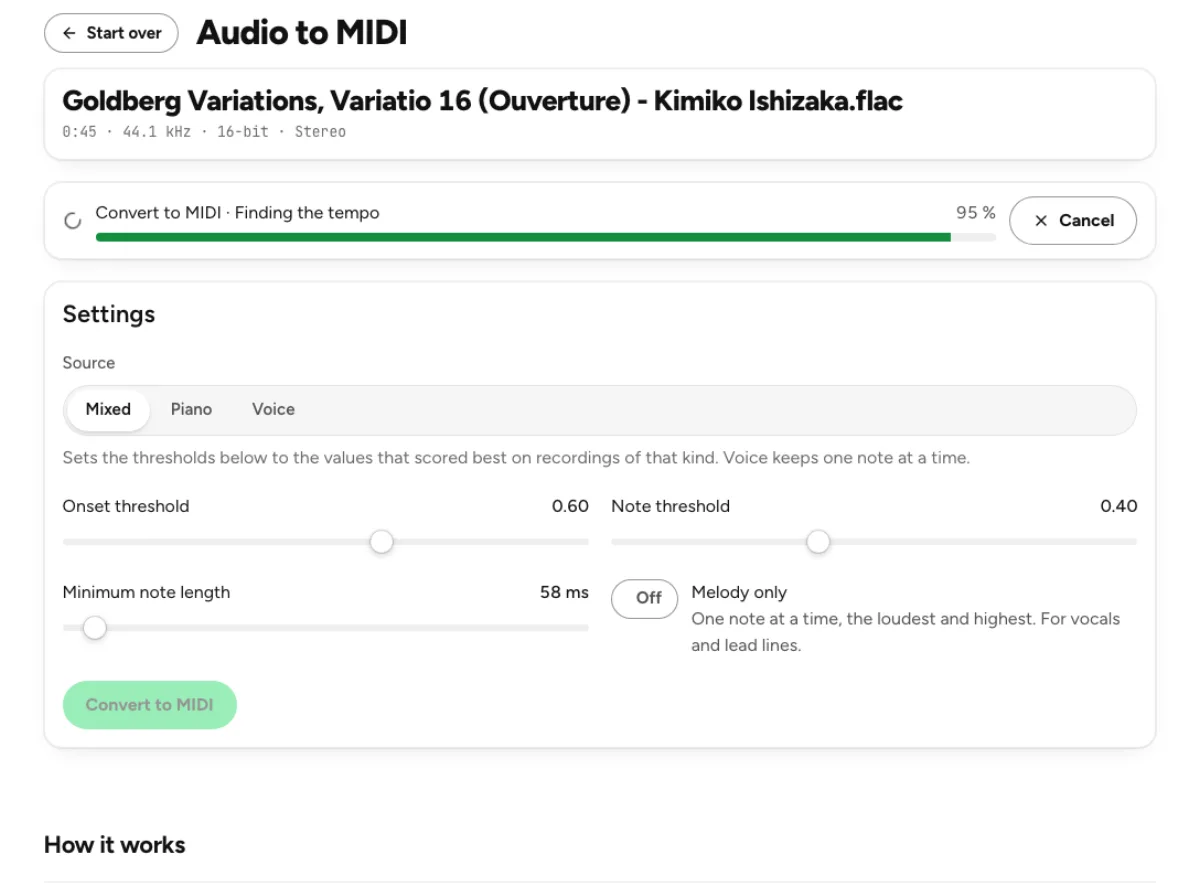
Audio to MIDI turns a pitched recording into editable note information for transcription, arrangement sketches or instrument replacement. Use a clear, reasonably isolated source when possible and treat the conversion as a draft. Check note starts, durations, octaves and overlapping notes against the recording before assigning a new instrument. A MIDI file carries note events rather than the timbre of the original performance. Dense mixes, percussion and expressive bends can be difficult to represent with conventional notes. If the source contains many instruments, isolate the part you need first or transcribe a shorter section. Correcting a small useful phrase is often more productive than trusting an entire unreviewed conversion.
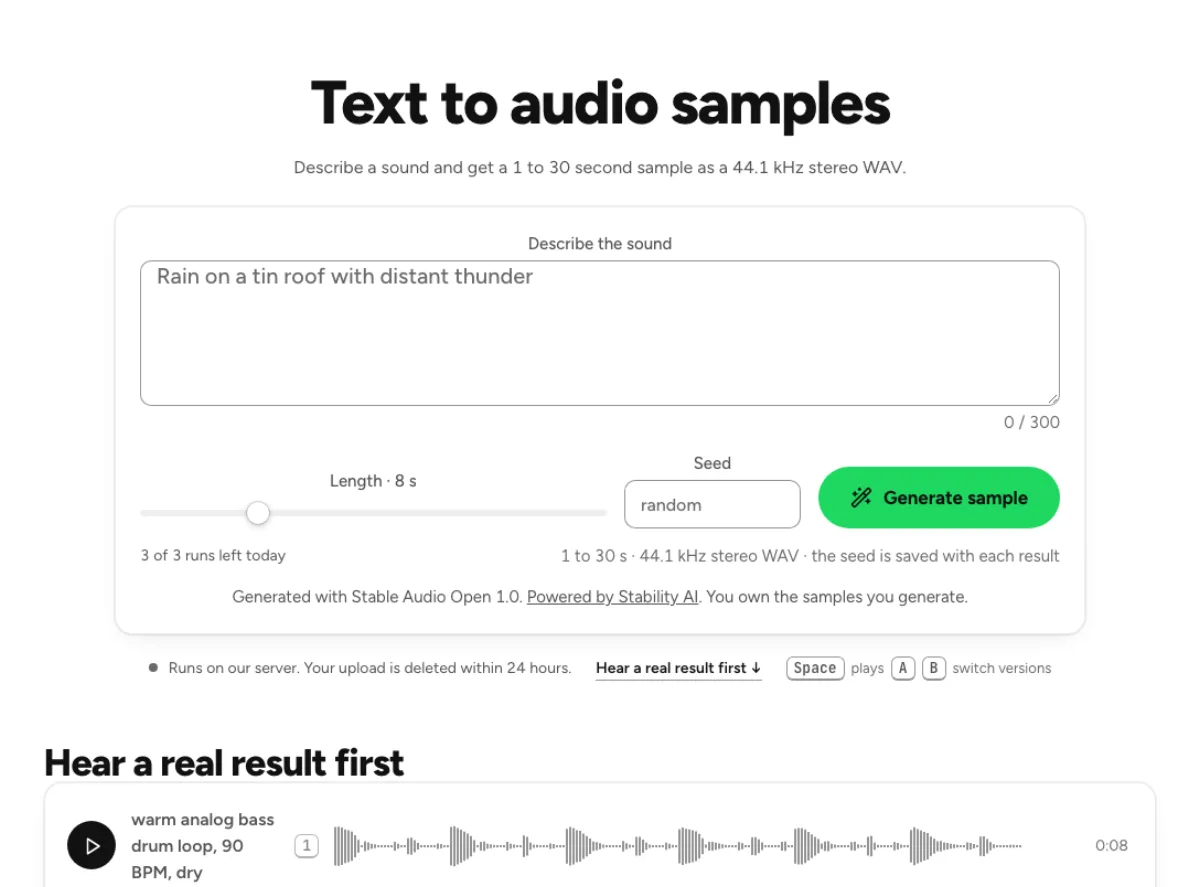
Text to audio is useful for exploring a texture, a transition or a short sound idea that you can evaluate within a track. Describe the source, character and context clearly, then audition the generated output before building an arrangement around it. Generation uses a cloud model and available runs rather than the local mastering engine. Check the model license and the conditions shown on the tool before using an output in a release, particularly when commercial eligibility matters. A generated sample may need trimming, fades, tuning or level adjustment. Keep your prompt and the version you chose so another session does not depend on reproducing the same random output.
Keep a clean mix export and decide what the session needs: tonal balance, release loudness, isolated parts or an arrangement sketch. Use lossless audio when available and leave room for processing rather than starting from a clipped file. If you use a reference, choose one for its arrangement and sound, and compare it at a similar listening level.
Choose the tool for that job and make one change at a time. Compare the source with the processed result, paying attention to the quietest passage and the loudest chorus. Check separation artifacts, MIDI note errors or generation suitability before treating the result as finished. Preserve earlier versions so a promising experiment does not replace your only usable source.
Export in the format required by your next production step or distributor, then reopen the actual exported file. Listen across transitions, inspect duration and levels, and check the artist, title and artwork where the format supports them. Keep the master and any delivery encodes separately named. Platform loudness simulations are preparation aids; distribution requirements and playback policies can change.
The mastering signal chain, meters, exports, audio to MIDI and browser utilities process audio on your device. Cloud separation and generation use the provider identified on the tool. Optional AI prompt interpretation is also a remote action. Importing a link has its own server workflow. Check the notice for the action you choose instead of assuming every feature uses the same data path.
Yes. The studio has a reference panel: load a track or a link and the master is compared with it, with the differences listed.
The samples come from Stable Audio Open under the Stability AI Community License, which the tool's page links to. Read it for your situation, especially above its revenue limit.
Listening to masters and exporting them is free: mastering runs in your browser. Pro is $11.99 a month and adds six-stem separation and 80 cloud runs a month; a 30-day pass is $14.99.
Mastering works on the combined signal, so its controls affect multiple instruments together. It can adjust the overall tone, dynamics and level, but it cannot reliably rebalance every individual source inside a finished stereo mix. If a problem belongs to one track, repair that track in the session when possible. Use the master to refine a mix that already communicates the musical idea.
Reopen the exported file and listen from the beginning through the ending, including quiet fades. Confirm the duration, channel layout and intended format, then inspect loudness and peaks. Compare with your approved version at matched level. An export is a separate file and can reveal mistakes such as a cut tail, an unintended setting or a filename that hides which revision you selected.
No. MIDI represents musical events such as pitches and note durations. The sound comes from the instrument that plays those events in your DAW. Conversion can provide a starting point for arrangement or transcription, but you still need to correct notes and choose a suitable instrument. Timbre, ambience, articulation and expressive details from the recording do not automatically become an identical MIDI performance.
Many utilities, analysis tools and the mastering signal chain work in the browser. Cloud separation and generation send the required input to the provider identified by their workflow. AI prompt interpretation can also use a remote service. Check the notice for the specific action and do not assume that every feature has the same data path. Local editing also depends on available device memory and browser codec support.