
Audio cutter
Trim a file to a region with fades, and lossless sources stay lossless.
- Runs in your browser. Nothing is uploaded.
- Space plays AB switch versions
You get the part you keep as a new file.
WAV · AIFF · FLAC · MP3 · M4A · OGG · Opus · up to 2 GB, any length
Runs in your browser. Nothing is uploaded.
How it works
- What it does
- Trim a file to a region, with fades, and export it in the source format or any other. Lossless sources stay lossless.
- How it cuts
- The region is cut on whole samples, optionally moved to the nearest zero crossing so there is no click. Fades are raised-cosine. A WAV, AIFF or FLAC source exported in its own format and bit depth is sample-exact outside the fades. An MP3 kept as MP3, or an M4A kept as AAC, is cut by copying its frames or packets, with no re-encoding: the gapless information is rewritten so the file starts and ends on the samples you chose. Opus and Ogg sources, and copies with fades, are decoded and the region is encoded again in the format you pick.
Cut the section you actually need
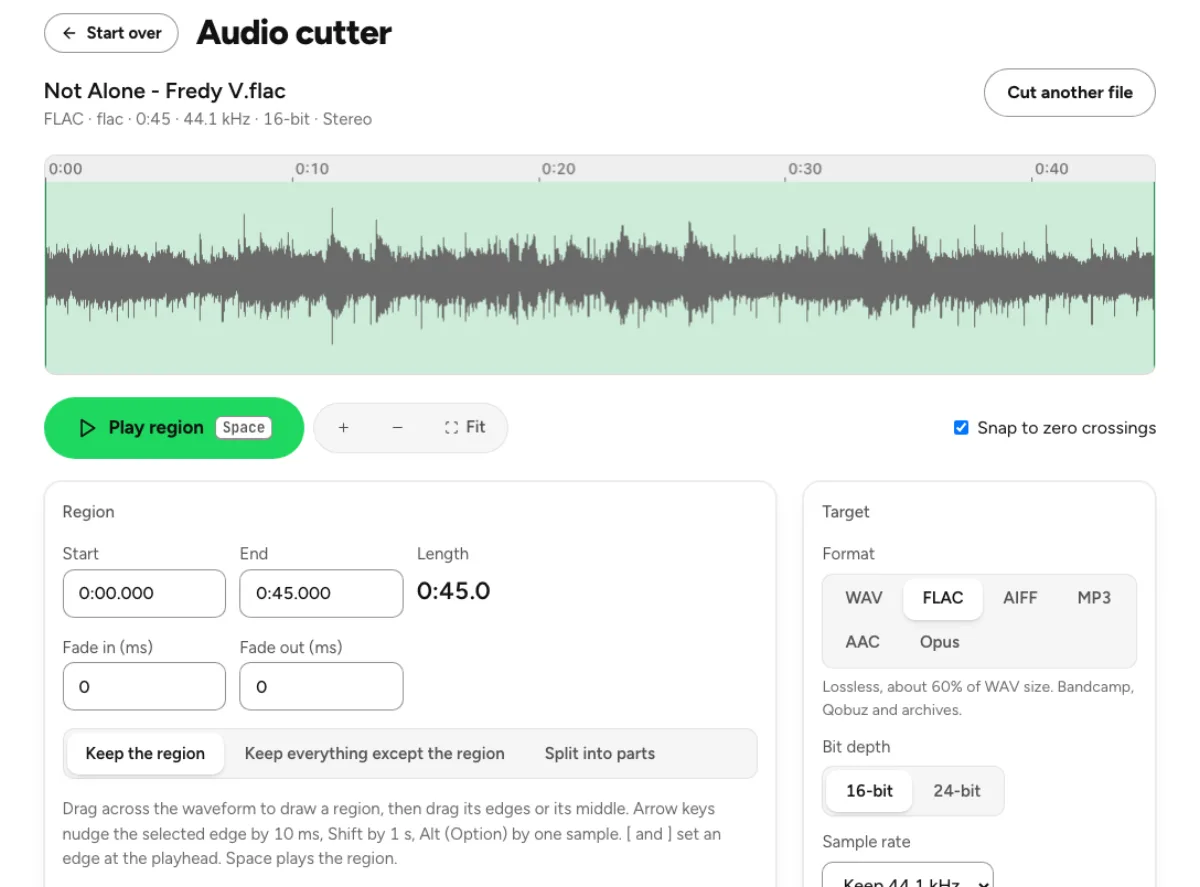
Keep a region or close a gap
Mark a start and end point, then choose whether the export keeps that region or keeps everything except it. The second option removes an unwanted middle section and joins the surrounding audio. These are different edits, so audition the intended result before exporting. A cut cannot repair timing or disguise every change of room tone. For spoken audio, place edit points around a natural pause and preserve enough breath and ambience for the join to feel believable.

Edges you can hear and control
The waveform, typed times and keyboard nudges help position the selection. Snap to zero crossings can move an edge slightly to avoid a sudden waveform jump, while fade-in and fade-out controls soften entrances and endings. Neither option automatically finds a musical phrase or chooses the correct word boundary. Listen close to each edge, then listen in context. A technically smooth cut may still interrupt a syllable, remove a beat or shorten the pause that gives a sentence its meaning.
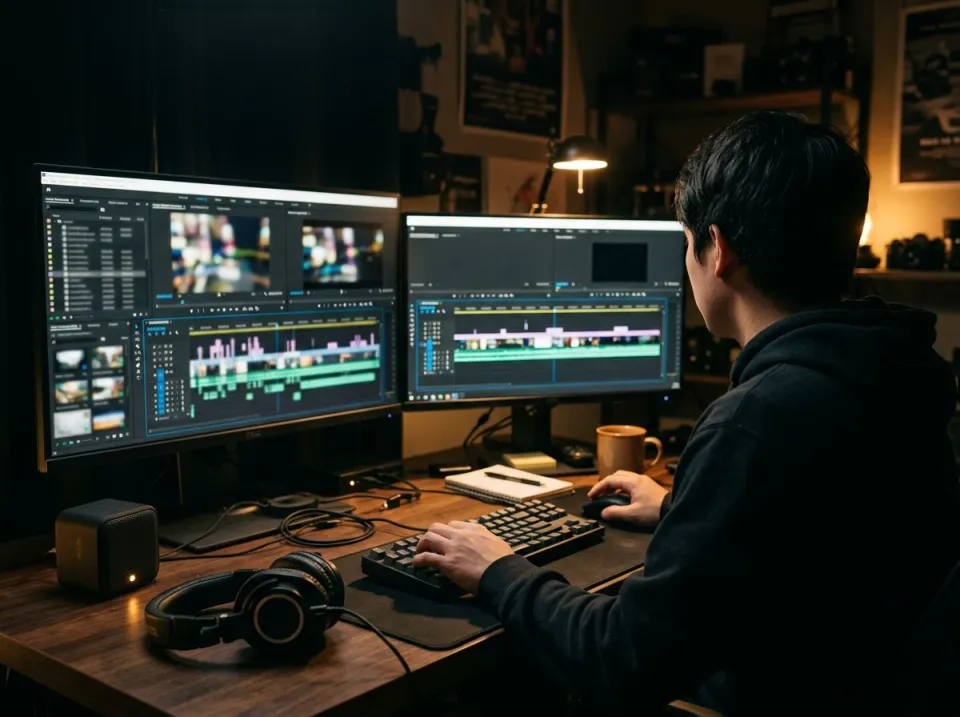
Lossless when the path supports it
WAV, AIFF and FLAC can preserve the untouched samples when exported with compatible source settings outside any fades. Eligible MP3 and AAC cuts can copy encoded frames when no fade requires rendering. MP3 frame copying also depends on suitable gapless information; otherwise the page can fall back to re-encoding and reports the actual path. The important distinction is between an edit that copies existing audio data and one that decodes, changes and encodes it again. Give each exported excerpt enough context for the person who will use it. A practice phrase may need a count-in, while a spoken quotation needs a boundary that preserves its meaning. These are editorial decisions the waveform cannot make for you. Listen once without staring at the display and check whether the beginning and ending feel intentional. Then inspect the numeric duration if a delivery has a strict limit. Both listening and timing matter; one does not substitute for the other.
Who trims audio in the browser

Podcasters removing a false start
Select the unwanted sentence or pause and use the option that keeps everything around the selection. Listen across the new join, paying attention to a breath, the noise floor and the rhythm of the conversation. A tiny fade can solve a click, but it cannot make incompatible words flow naturally. Keep the full recording as a source and export a new working copy. Several complicated edits may be easier to manage in a dedicated multitrack editing session.

Musicians preparing practice excerpts
Cut a short passage that includes the musical lead-in you need for practice. Keeping a bar before the difficult phrase makes the timing easier to follow than starting on an isolated note. Save the excerpt, then use the pitch changer if you need slower playback in the original key. This division keeps the editing decision clear: the cutter chooses the passage, while a separate tool changes tempo. Check that the end contains enough of the final note’s decay.
Editors making previews and samples
A release preview, audition clip or short effect needs deliberate boundaries, not simply the first available seconds. Select a representative moment and include a sensible ending or fade. If you are extracting an excerpt from someone else’s work, an edit does not grant distribution rights. Choose a format accepted by the receiving application and check the downloaded duration. A ringtone or social platform may impose further length or container requirements outside this tool’s own editing controls.
How to select, audition and export a cut
Load the source and inspect its timeline
Choose a supported file and let the page create its waveform. The source is read on your device, with a 2 GB file cap and practical decoded-memory limits. Long recordings may need more time to display. Play the section around the intended edit before marking the final selection. For a long session, zoom or move through the waveform to work at a useful scale rather than trying to place a precise boundary from a view of the whole recording.
Mark, choose and audition the operation
Drag selection edges, type Start and End, or nudge an edge with the keyboard. The page provides fine and larger time steps, which are helpful when a waveform does not make a quiet entrance obvious. Choose keep-region or remove-region, then set fades only where they support the edit. Snap-to-zero can improve a boundary but slightly changes its position. Recheck the selected times when the cut must satisfy a strict editorial duration or begin at a specific musical moment.
Export and verify the saved copy
Pick the target format and review whether the page describes the operation as lossless copying or rendered encoding. Export, download and play the saved file around both edges and any middle join. Confirm that the filename, duration and retained tags match the intended delivery. For repeated sections, the splitter and supported cue information can help organize a long source, but listen to representative boundaries. Keep the original full-length recording so a later change does not require reconstructing removed material.
Audio trimming and lossless-copy questions
Can I cut an MP3 without re-encoding?
Eligible MP3 cuts can copy frames when the output remains MP3 and fades are zero. Suitable gapless metadata is required for the frame-copy path. If the input cannot support that path, the tool falls back to encoding and identifies the result accordingly. Do not assume that choosing the same extension alone guarantees a frame-copy edit.
Can I remove a section from the middle?
Yes. Mark the unwanted passage and choose Keep everything except the region. The export joins the audio before and after the selection. Listen over the join because a natural edit depends on timing, ambience and the material on both sides. A click-free boundary can still sound abrupt if it interrupts a word, beat or sustained note.
Will WAV or FLAC trimming change untouched samples?
With compatible source format and bit-depth settings, the lossless path preserves the retained samples outside fades. Applying a fade deliberately changes samples in the affected region, and changing sample rate or encoding settings is a separate transformation. Read the export description and keep a source copy whenever exact preservation matters to the workflow.
Why did snap move my edit point?
A sudden jump in waveform amplitude can produce a click. Snap-to-zero looks for a nearby crossing and can move the boundary slightly to make the transition smoother. That is useful for listening but may differ from the time you originally marked. Turn it off or recheck the resulting selection when an exact editorial boundary is more important than automatic snapping.
Can I cut a very long recording?
The file-size limit is 2 GB and the cutter does not impose a fixed duration cap. The browser still needs enough working memory to read and prepare the audio. Long compressed files can expand considerably during decoding. If the device struggles, use a smaller working copy or a desktop workflow for the full recording while preserving the untouched original.
Do fades make every edit seamless?
No. Fades can soften clicks and avoid an abrupt start or stop, but they do not match incompatible ambience or rebuild a syllable cut in half. Choose good edit points first, then add a short fade if needed. For music, listen to the beat and note decay; for speech, listen to breathing and the natural spacing between words.
Can I split a recording into several pieces?
The cutter includes splitting options for dividing a long source into sections, with supported cue information available when supplied. Check the displayed section count and output names before downloading. Automatic boundaries are organizational aids rather than guarantees of musical phrasing. Listen to the beginnings and endings of representative pieces, especially when preparing an album, audiobook or set of samples.
Is the source uploaded or overwritten?
The cutter operates locally in your browser and saves a new result. It does not upload the recording for the edit or rewrite the original file on disk. Save the finished output before leaving the page. Keeping the full source remains useful even after a successful cut, because discarded audio is not stored inside the shortened download for later recovery.
Learn how
Guides and tutorials that use this tool, with real screens and real numbers.
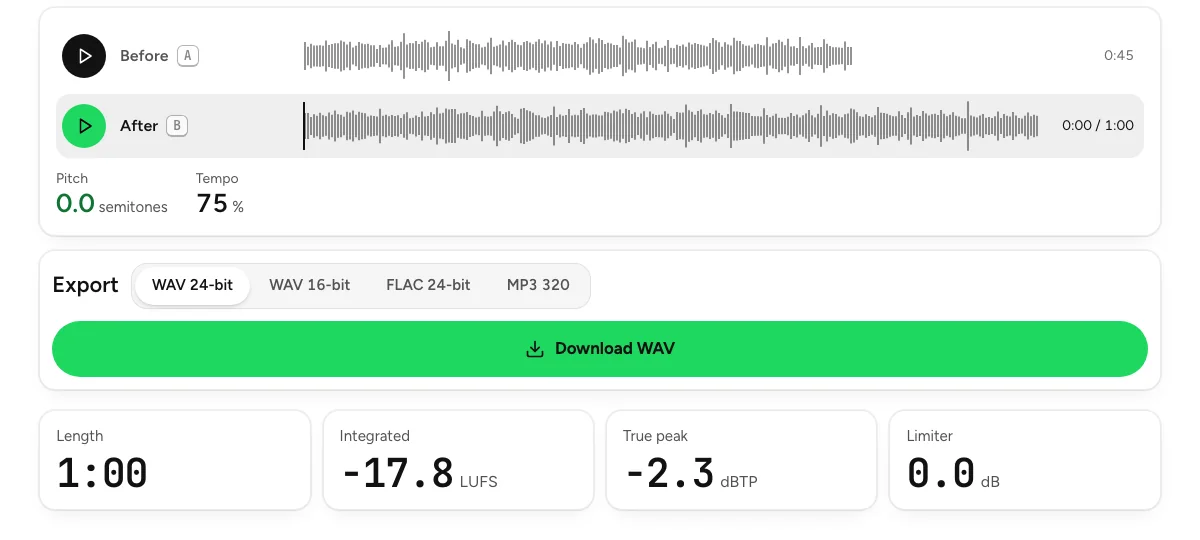 Slow a song down without changing its pitchFour steps on the pitch changer: load the song, set the tempo, compare at matched level, export. Down to half speed, in the original key, in your browser.
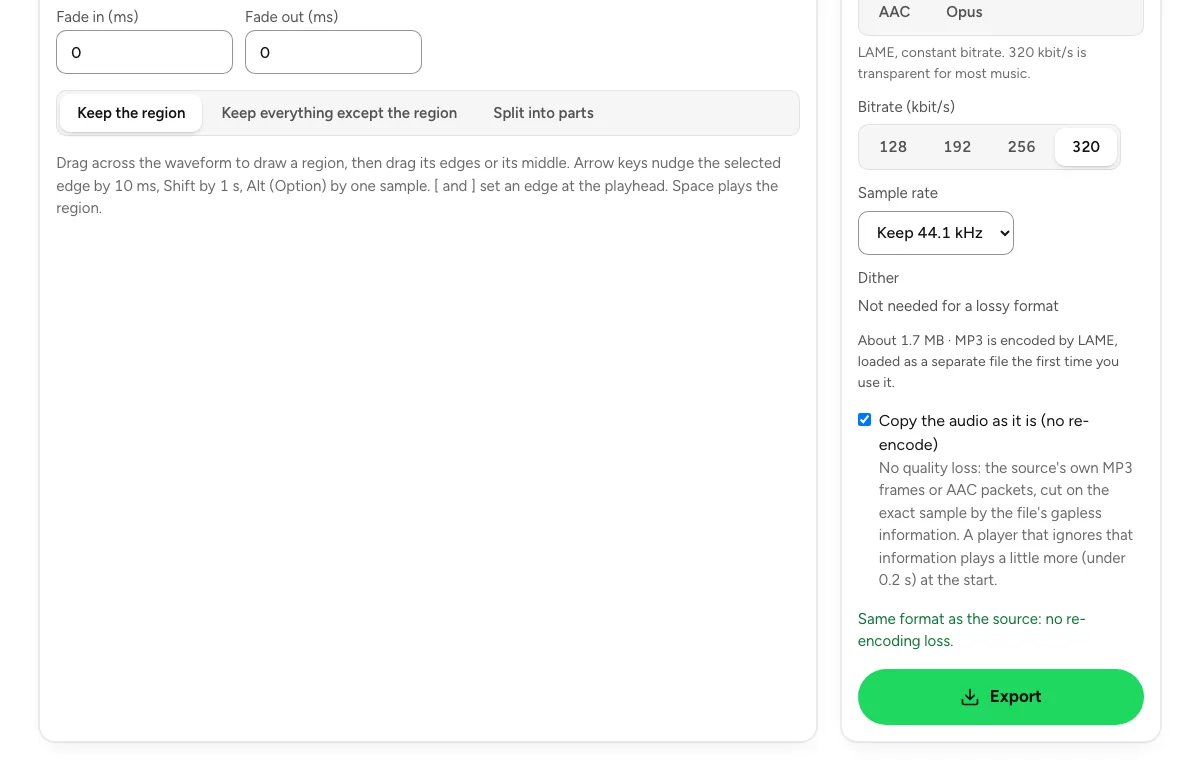 Cut an audio file and export it without re-encodingFour steps on the audio cutter: load, mark the region, keep the source format with the fades at 0, export. Which files stay lossless, and which cannot.
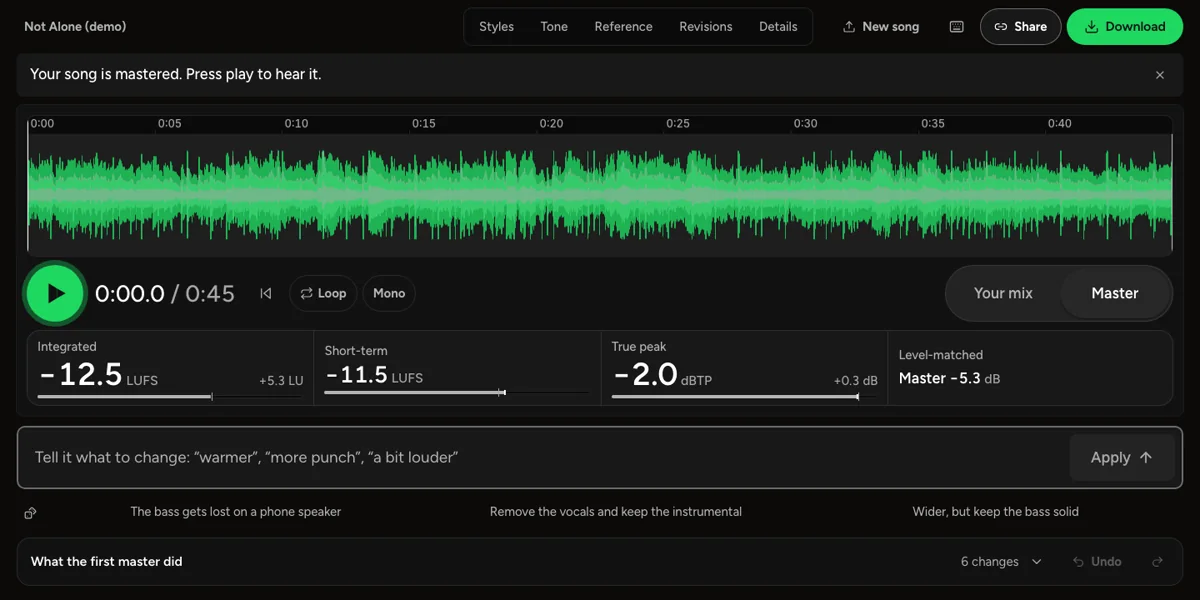 How to master a track before releaseWhat mastering changes, how loud a song should be for streaming, and how to check your master the way Spotify, Apple Music and a phone speaker will play it.