
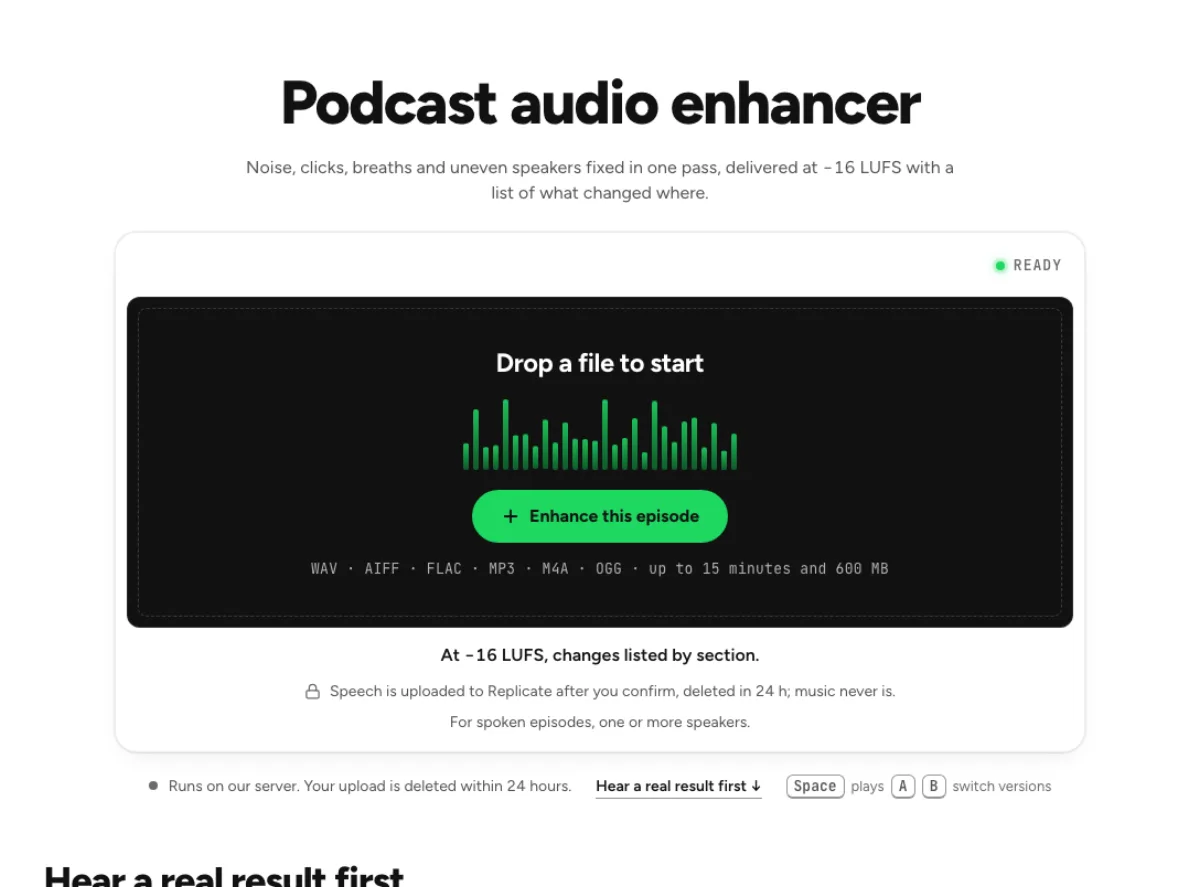
Podcast audio enhancer
Noise, clicks, breaths and uneven speakers fixed in one pass, delivered at −16 LUFS with a list of what changed where.
- Runs on our server. Your upload is deleted within 24 hours.
- Space plays AB switch versions
At −16 LUFS, changes listed by section.
WAV · AIFF · FLAC · MP3 · M4A · OGG · up to 15 minutes and 600 MB
Speech is uploaded to Replicate after you confirm, deleted in 24 h; music never is.
For spoken episodes, one or more speakers.
How it works
- What to expect
- For spoken episodes, one or several speakers. Sections are level changes, not speaker names: it does not know who is talking.
- Your file
- Speech goes to our processing partner (Replicate) to be cleaned and is deleted there within 24 hours. It counts as one cloud run, and the same file again within 24 hours is free. Music is cleaned in your browser and never uploaded.
- How this one works
- Clicks go first. A show with noise then goes to a speech-enhancement model on our server (NVIDIA RE-USE; deleted there within 24 hours), leaving a little room so it does not sound gated; a clean one skips it. Breaths are found by a detector trained on hand-marked breaths (Respiro-en, an 8.5 MB model run in your browser, the older rule detector if it cannot load) and come down 12 dB. Each stretch of speech is then evened against the surrounding few seconds, so a quieter speaker comes up as a whole and a sentence keeps its emphasis. Finally the file goes to −16 LUFS with peaks under −1.5 dBTP, in your browser. A stereo file keeps its left and right.
What the podcast audio enhancer changes
Combine focused spoken-audio repairs
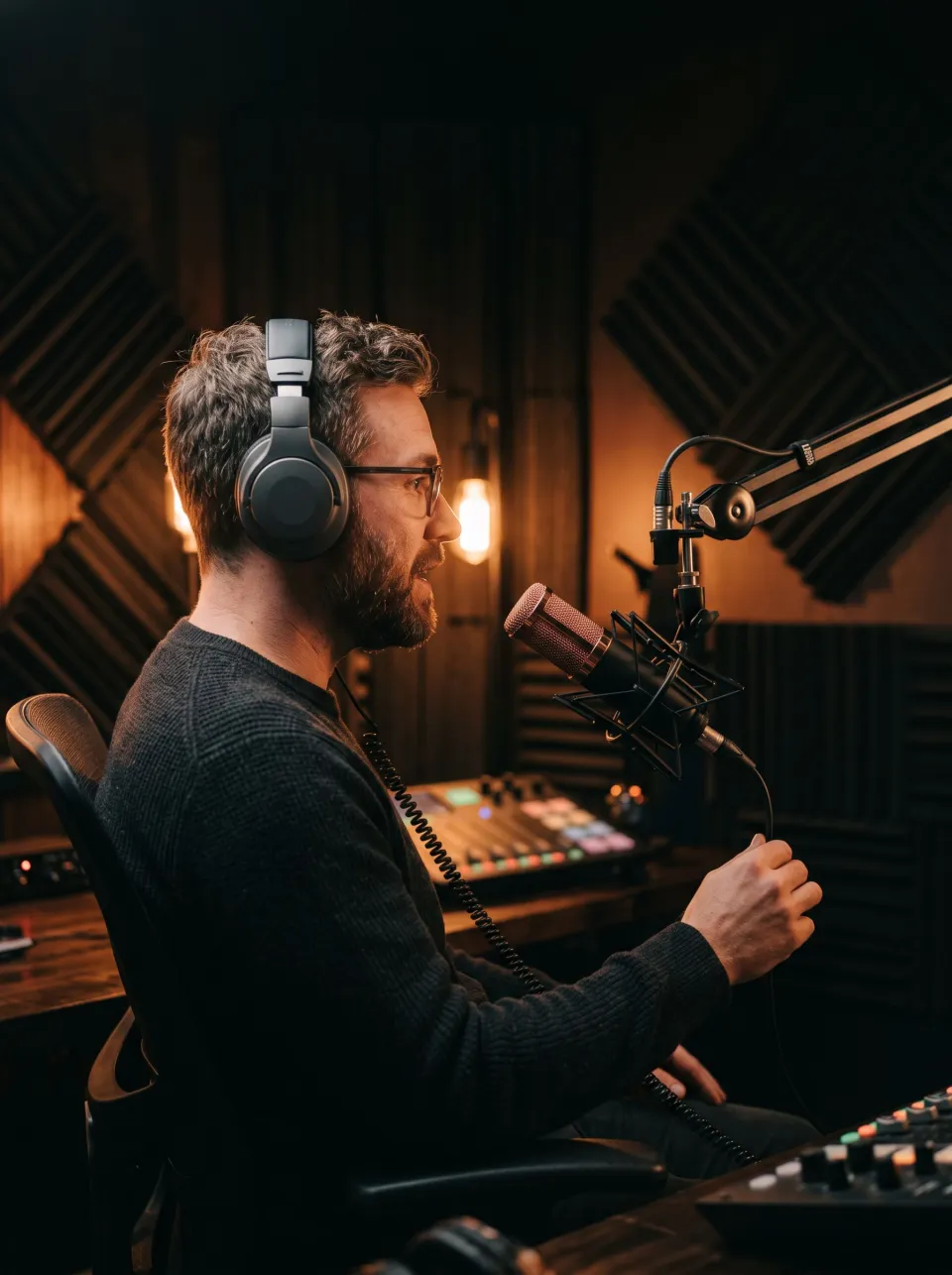
A spoken episode can have an acceptable voice but still need noise cleanup, click repair, softer breaths and more even level. The podcast audio enhancer combines those jobs rather than treating podcast preparation as a simple volume boost. It uses speech cleanup when needed, repairs supported oral clicks, lowers selected breaths and applies leveling toward its spoken delivery target. The report explains the changes instead of promising that every file becomes a studio recording. Check a complete exchange, including quiet replies and interruptions. A useful chain makes the episode more comfortable to follow while preserving intelligibility and the natural pace of the conversation.
Review changes by section
Different speakers and parts of an episode can need different level changes. The podcast audio enhancer lists processing by section, helping you find the passages where the chain did the most work. It also exposes breath and click events for review, so automatic detection does not have to decide every expressive sound. Use the section report to guide listening, especially at speaker changes and quiet asides. A section summary is not a transcript or a judgment that the speaker's words are correct. If noise or overlap hid important content, verify it against the source instead of treating a smoother waveform as proof of faithful recovery.
Target −16 LUFS for the voice track
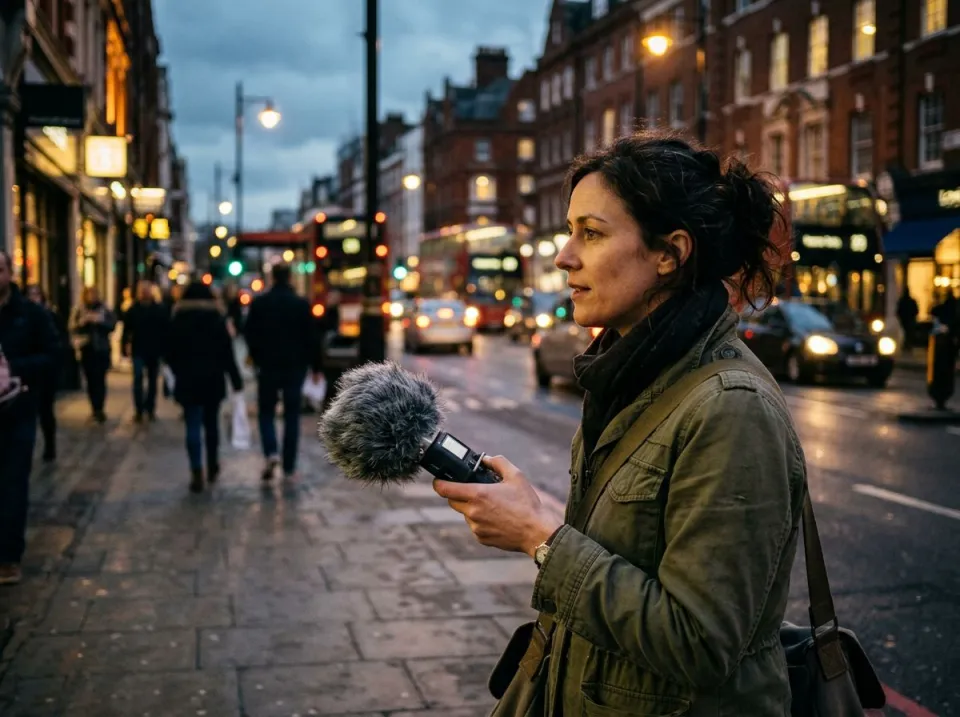
The podcast audio enhancer levels speech toward −16 LUFS with a −1.5 dBTP ceiling. That gives the workflow an explicit target, while the actual recorded material still determines how it sounds. A quiet guest can be raised and a louder section controlled, but the tool is not a substitute for editorial mixing of a complicated show. Noisy speech can use a confirmed server cleaning stage, while event repairs and leveling run on your device. The page identifies a local fallback if cloud cleanup cannot be used. Read the route and compare the result rather than assuming every part of the chain runs in one location.
Spoken programs with several cleanup needs
Two-person interviews
A host and guest can arrive at very different recorded levels even when both are easy to understand alone. The podcast audio enhancer can make the conversation more comfortable to follow through its leveler and section report. Test short replies as well as longer answers, because an automatic change should not turn a natural aside into an unexpectedly prominent interruption. The chain cannot reliably separate people who spoke over one another, and a nearby background voice may remain after cleanup. Check the transitions, laughter and shared speech before accepting the episode. Keep the original so a particular section can be balanced differently later in the final edit.
Solo spoken episodes
A solo recording may contain long passages at one level, a few soft explanations and occasional close-microphone clicks or breaths. Use the podcast audio enhancer to evaluate these supported repairs together, then review the marked events rather than accepting every detection blindly. A breath can be part of a thoughtful pause or a laugh, so reducing all of them equally is not always the best editorial choice. The result should preserve the presenter's rhythm as it controls distractions. Compare an exposed voice passage and a section with your eventual music bed before deciding whether further mixing or a different balance is needed.
Teaching conversations
A recorded discussion or educational interview needs consistent listening comfort without flattening its conversational meaning. The podcast audio enhancer can help when participants lean toward and away from the microphone, but compare the actual explanation after leveling. A quieter emphasis may be intentional, while an inaudible answer may need a stronger adjustment in the edit. This is not a content editor, a fact checker or an automatic chapter-writing service. Its sections describe audio processing. Preserve the original and check technical terms, names and numbers where cleanup had a difficult source. Final listening should include the device and volume your audience is likely to use.
A complete voice-preparation pass
Prepare the original speech track
Choose the best available original voice recording and keep a separate untreated copy. Load it into the podcast audio enhancer, let the speech reading finish, and review the limits and any cloud confirmation before the speech-cleaning stage runs. A full music track is unsuitable for a speech-focused chain. If the show includes a complex music mix, consider preparing the dialogue separately and assembling the program in your editor. This is a spoken-audio workflow, so evaluate an excerpt containing normal conversation, a quiet reply and an obvious breath or click before applying its choices to a longer recording with varied conditions.
Review events and level changes
After processing, read the section changes and replay the passages where level movement is largest. The podcast audio enhancer should help a listener follow each voice without making quiet remarks jump unnaturally forward. Hear the breath and click marks, keep events that belong to the performance and adjust the available breath amount when needed. The default treatment turns detected breaths down by 12 dB rather than applying the dedicated breath remover's room-tone target. Listen through several turns of conversation and check pauses after strong sentences. A polished result requires a believable flow, not merely a large count of repaired events.
Check the final program after assembly
Download the selected result and place it into the actual episode project. The podcast audio enhancer provides spoken repairs and a loudness target, while introductions, music, advertisements and editorial cuts still need a final program check. Listen across treated and untreated sections and measure the assembled episode if its delivery requirements matter. Keep the original and the reviewed processing choices until the show is approved. If one speaker or expressive breath needs a different treatment later, return to the source instead of stacking another full chain on the export. This is a preparation tool that supports the final edit rather than replaces it.
Common questions
Which spoken-audio problems are addressed?
It combines supported noise cleanup, mouth-click repair, breath reduction and speech leveling. It reports changes by section and exposes events for review. It does not write a transcript, edit the content or guarantee a studio-quality recording from speech that was severely masked or distorted.
What loudness is targeted?
It targets −16 LUFS with a −1.5 dBTP ceiling. That is the spoken workflow's target, not a guarantee that an episode with added music and other segments already meets every delivery requirement. Check the loudness of the assembled final program in your editing workflow.
Can I keep selected breaths?
Yes. It provides breath marks you can review and keep, along with a breath amount control. Its default reduction is 12 dB. For a dedicated room-tone-based target and focused intake review, use the breath remover instead of the full spoken cleanup chain.
Which parts of the workflow use the cloud?
It can use confirmed cloud speech cleanup, with uploads deleted by Replicate within 24 hours. Click and breath handling and leveling are local stages. A smaller local fallback can be disclosed when cloud cleanup cannot run; check the actual route message before accepting the result.
Can two speakers be balanced?
It applies speech leveling and reports changes by section, which can help uneven conversational levels. It does not independently mix isolated speaker tracks or guarantee perfect separation during overlap. Review quiet replies, laughter and transitions so natural differences in emphasis remain believable.
Is this suitable for a music mix?
It is intended for spoken material, and its speech-cleaning stages are unsuitable as general music restoration. Prepare dialogue separately when practical, then combine it with music in the final edit. Use the music enhancer or mastering studio for a song-oriented workflow.
Why does another voice remain?
It improves spoken clarity but does not know which nearby person you intended to retain. Another intelligible talker may survive, especially during overlap. A quieter background does not prove one-speaker isolation, so check the desired words and keep the original recording for review.
Should I run the podcast audio enhancer after every edit?
Keep a stable source and compare before repeating the whole chain. Another full pass can compound noise reduction, event repairs and level movement. After assembling music and cuts, perform a final program check and make the needed targeted adjustment rather than automatically processing the entire episode again.