Noise remover
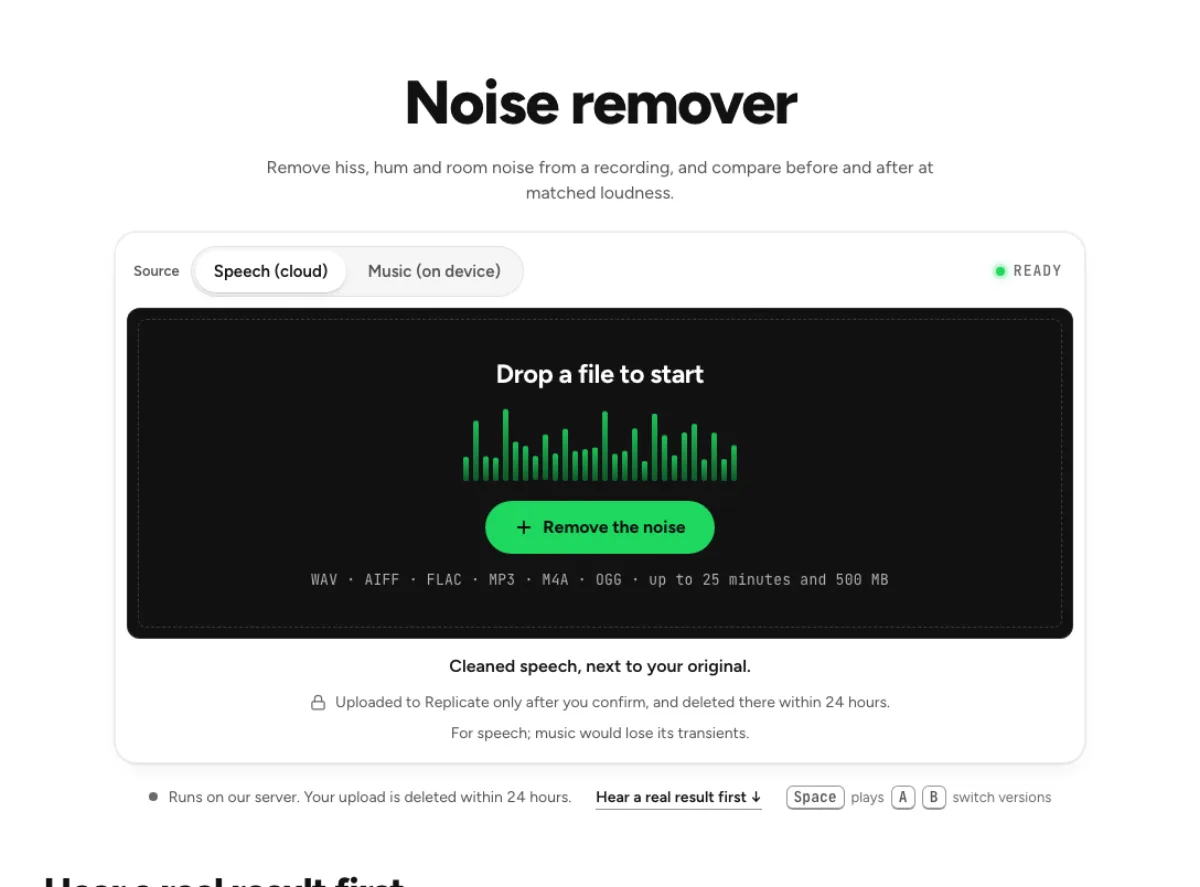
Remove hiss, hum and room noise from a recording, and compare before and after at matched loudness.
- Runs on our server. Your upload is deleted within 24 hours.
- Space plays AB switch versions
Cleaned speech, next to your original.
WAV · AIFF · FLAC · MP3 · M4A · OGG · up to 25 minutes and 500 MB
Uploaded to Replicate only after you confirm, and deleted there within 24 hours.
For speech; music would lose its transients.
How it works
- What it does
- Remove hiss, hum and room tone. Music runs in your browser and nothing is uploaded; speech uses a cloud model and says so first.
- Model
- Speech: NVIDIA NemotronLabs RE-USE (OpenMDW-1.1), run by us on Replicate, with MossFormer2 SE 48 kHz (Apache-2.0) beside it as a check: where RE-USE dropped a word that MossFormer2 kept, MossFormer2's moment is used, and when a second person talks under the main voice, MossFormer2 separates the main voice first. Music: Rifflo's two-pass spectral denoiser, in your browser.
- Output
- A 24-bit WAV at your file's sample rate (44.1 kHz at least), with its channel count and exact length, lined up with it, so it drops back in place on a timeline. The readouts use a 100-ms noise-floor estimate.
- Time
- Usually under a minute for a 30-s clip once the model is warm; the first run after a quiet spell can take 2 to 4 minutes while it starts. Music runs in a few seconds on your device.
- Your file
- Uploaded to Replicate for processing and deleted there within 24 hours. Results stay on our server for 24 hours, keyed by the file's checksum, so a repeat in that time is free.
What the noise remover changes
Speech and music need different treatment
Start by choosing the recording you actually have. A spoken interview with fan noise needs a different treatment from a stereo song with tape hiss. The noise remover checks the file and provides a speech route and a music route rather than passing every sound through a voice model. Speech is cleaned on a server after the run is confirmed. Music uses a noise profile and processing in your browser. This distinction matters because a speech model can mistake cymbals, sustained notes and reverb for unwanted sound. Use this workflow to lower an identifiable floor, then listen for anything useful that followed it out.

Hear what comes out
A cleaner file can seem better simply because its level changed. The noise remover compares Original and Cleaned at matched loudness, so a louder voice does not hide a damaged consonant or watery tail. Listen through the end of a sentence and the following pause, then try a louder passage. The removed-sound lane gives another check: it should be dominated by the unwanted background rather than whole syllables or an instrument. On the speech result, you can mix some original sound back underneath. Lower the reduction when a perfectly quiet pause makes the recording sound less believable.

Protect quiet detail
Steady noise is easier to describe than a second person speaking over the first. The noise remover can lower a fan, hiss or room bed, but it does not identify the one person you intended to keep. Nearby talkers may remain, and loud noise that masked a word cannot be turned back into a known original word. Music mode is most useful when the file contains a short noise-only passage. That supplies a reference for what to reduce. When noise and music occupy the same frequencies throughout the track, use a gentler amount and accept some remaining hiss.
Where a quieter floor helps
Spoken interviews
An interview often moves between clear answers, quiet thinking and noisy interruptions. Use the noise remover on a representative excerpt before committing a long session. Check both the closer and the more distant speaker; a setting that flatters the presenter can make the guest sound thin. Pay attention to the start of words after a pause, where aggressive reduction can feel like a gate opening late. This page handles background cleanup, while the podcast audio enhancer is a better next step when you also need click repair, breath control and delivery loudness. Keep the unprocessed recording so another edit remains possible.
Archive transfers
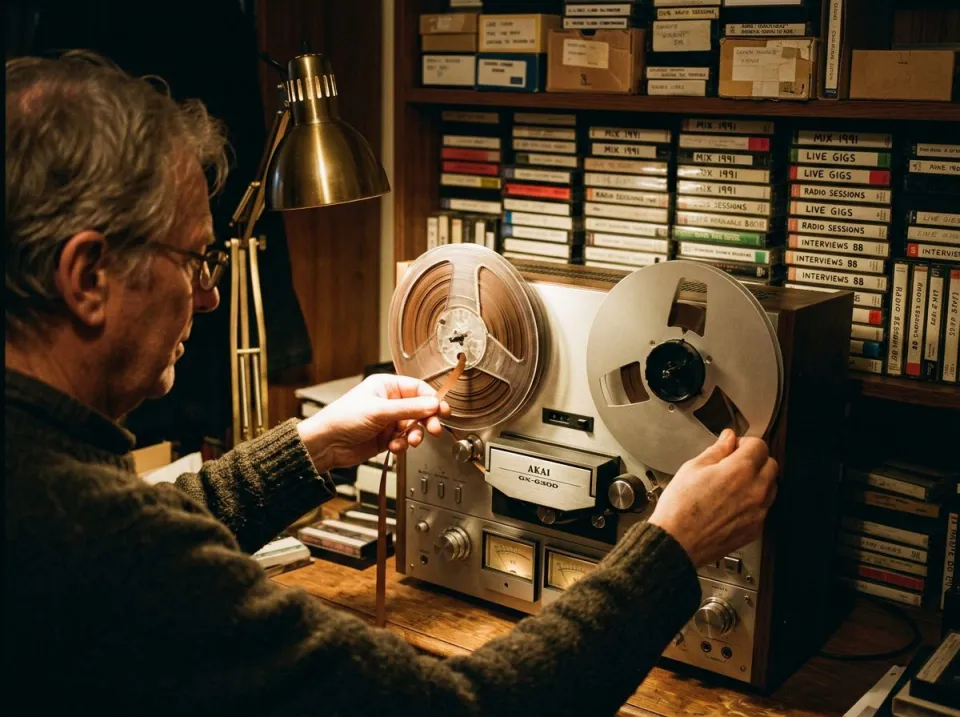
A cassette or vinyl transfer can have useful stereo ambience as well as unwanted hiss. In Music mode, the noise remover stays on your device and learns from the quiet parts of the file. If there is a clean lead-in or run-out, use it as the reference instead of a section containing a quiet sustained instrument. Listen to cymbal fades, string decays and the space around the recording. Those sounds can resemble the noise floor. The cleaned copy should make an archive easier to hear without pretending to restore frequencies that were lost before digitization. Save a separate cleaned copy and preserve the transfer.
Voiceover preparation
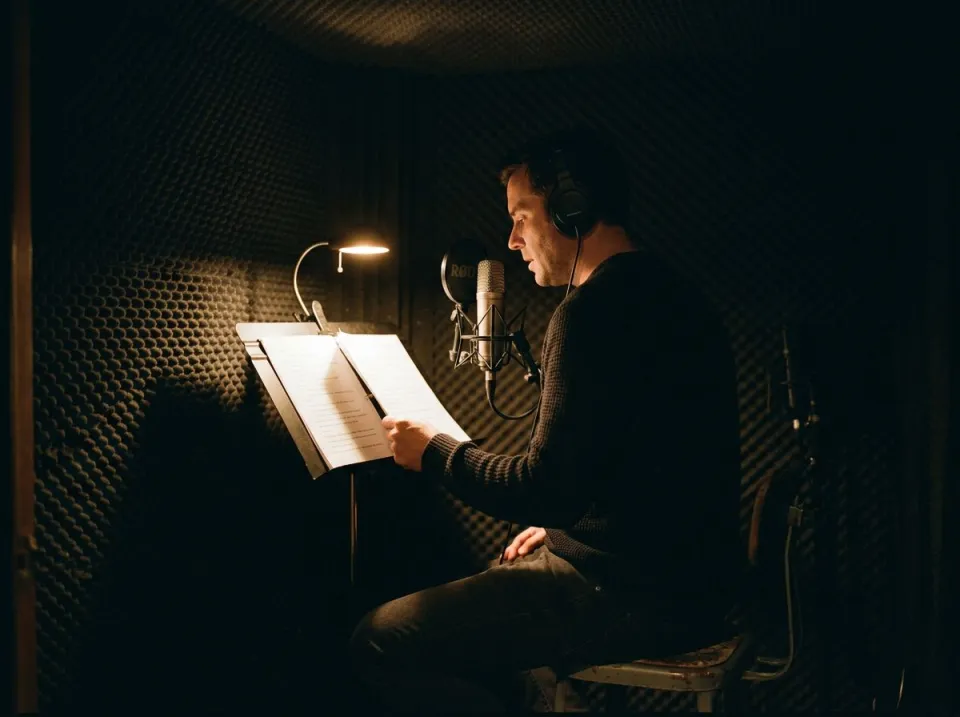
For narration, judge cleanup at the level of the final listening experience. A faint room bed that disappears under a voice may not need maximum suppression. The noise remover is useful before an editor assembles takes, because a consistent background makes joins easier to hear and compare. It does not remove mouth clicks or decide where breaths belong in a performance. For those jobs, use the dedicated tools and review their marks. After the noise remover, compare a quiet phrase with a forceful one through headphones. If the voice changes character between them, restore some original sound rather than pushing for a silent waveform.
Choose the route, then compare
Load and confirm the recording
Drop a supported audio file and read the file information before starting. Choose Speech for spoken material and Music for a song or instrumental recording; if the automatic reading is unclear, answer according to the content you want to preserve. The noise remover does not upload a speech file merely because you selected it. Review the confirmation and the available run count first. For music, prepare to audition the local result without a cloud run. Noise reduction cannot improve the source format itself, so use an original WAV or FLAC when available rather than repeatedly saving a compressed copy between cleanup attempts.
Compare difficult moments
After processing, switch between Original and Cleaned while playback continues through a noisy pause and into speech. Check a soft ending such as an s or f, then a sudden consonant and a breath. The noise remover should leave the words easy to understand, even when some background remains. In Music mode, also check an exposed bass note and the last cymbal of a section. Use a noise-only reference when one exists, and avoid teaching the profile from music. Treat this as an auditioning step: a smaller reduction that survives close listening is often more useful than the quietest available result.
Save a checked result
Download the version you actually compared, then listen to a short section of that saved file in your normal player. Keep its name distinct from the original so the untreated source remains easy to find. The noise remover is one stage in an editing workflow, not a substitute for checking joins, final level or permissions to publish the recording. If the sound needs room treatment rather than a lower background floor, compare the echo or reverb tool before adding more noise reduction. Return to the noise remover only when the remaining problem is noise; repeatedly processing an already cleaned result can accumulate dullness and artificial texture.
Common questions
Does the noise remover upload my recording?
It uploads spoken audio only after confirmation. Replicate deletes that upload within 24 hours; the result is retained for 24 hours so a repeat of the same file is free. Music mode processes the recording in your browser. Read the selected mode before confirming a speech run.
Can I clean a song?
Yes, use Music mode. It is intended for hiss, hum and a background floor while preserving the stereo image. Start gently, especially without a noise-only passage. Speech mode can alter instruments and tails, so it is unsuitable as a general song cleaner.
Do I need a noise print?
Speech mode needs no noise print. Music mode can learn from quiet moments, and a passage containing noise alone gives it a better reference. Avoid selecting a quiet vocal or ringing instrument as noise, because useful sound can then be reduced with the hiss.
Why does another voice remain?
Another person speaking is not simply a stationary noise floor. The noise remover is designed to preserve speech and may retain a nearby talker, especially when voices overlap. It cannot reliably choose the intended speaker or recreate a word that another voice has completely covered.
How strong should the reduction be?
Use the least reduction that makes the background acceptable in context. With the noise remover, compare soft consonants and sentence endings as well as silent gaps. If words become watery or the room disappears abruptly, reduce the effect or bring some original sound back into the speech result.
Can it repair clipping?
It is not a clipped-waveform reconstruction tool. Distortion created when a microphone or recorder overloaded may remain after the floor is quieter. Keep an untouched source and listen for harsh peaks separately; removing background noise does not undo missing or flattened waveform information.
Why do music tails change?
A decaying cymbal or sustained note can resemble background hiss. In Music mode, the noise remover has to separate overlapping frequency content without access to the original clean recording. A better noise reference and a gentler reduction help, but some remaining noise may be the preferable tradeoff.
When should I use a different noise remover workflow?
Use the breath or mouth click tool for individual marks, and the reverb remover for room decay. The noise remover is the right starting point for a continuous floor. The audio cleaner diagnoses several problems together; the podcast enhancer also addresses speech level and delivery loudness.
Learn how
Guides and tutorials that use this tool, with real screens and real numbers.