
Mouth click remover
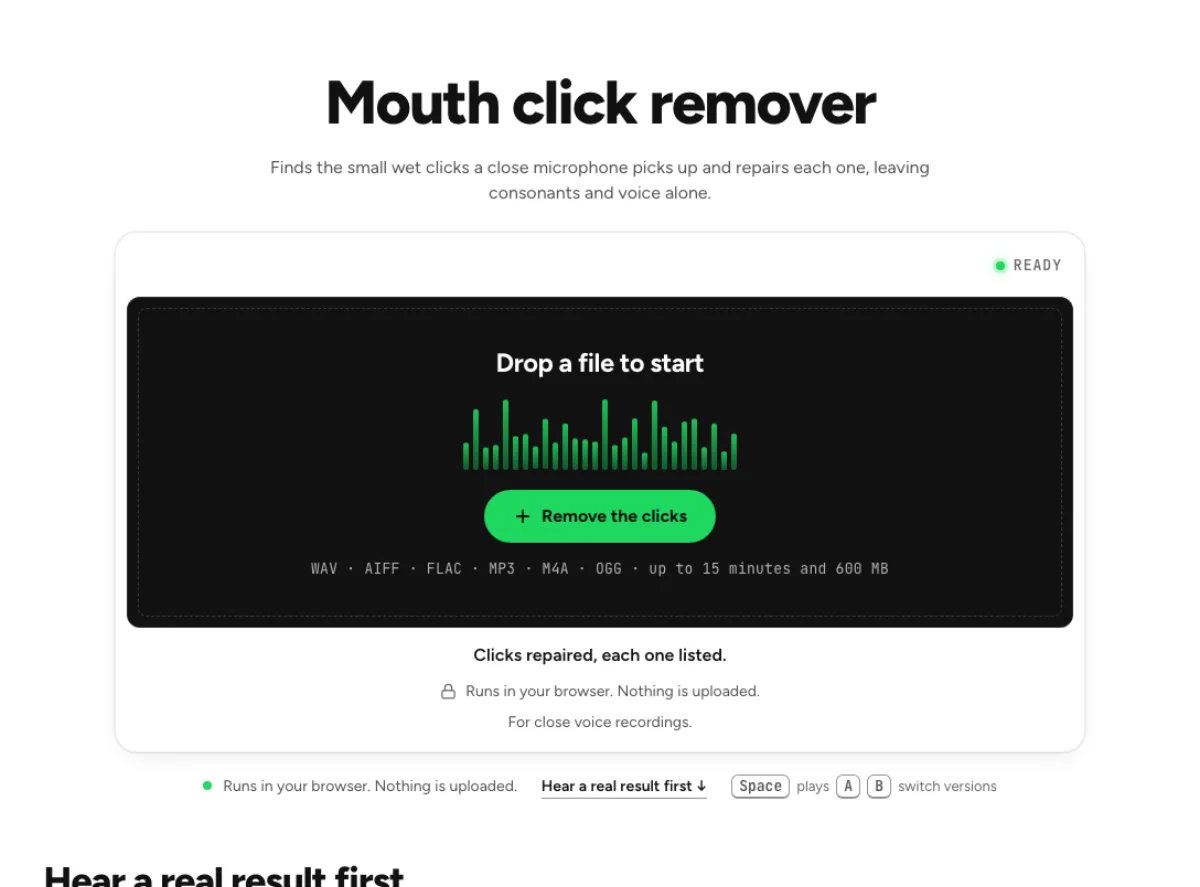
Finds the small wet clicks a close microphone picks up and repairs each one, leaving consonants and voice alone.
- Runs in your browser. Nothing is uploaded.
- Space plays AB switch versions
Clicks repaired, each one listed.
WAV · AIFF · FLAC · MP3 · M4A · OGG · up to 15 minutes and 600 MB
Runs in your browser. Nothing is uploaded.
For close voice recordings.
How it works
- What to expect
- For a close voice recording. A click buried under an /s/ is left, because nobody hears it.
- How this one works
- A click is a burst above 2.5 kHz shorter than 5 ms, standing over its surroundings, with quiet on both sides: 15 dB over at the default Sensitivity (60 %), from 24 dB at 0 % to 9 dB at 100 %, so a higher Sensitivity catches quieter clicks. A consonant's burst runs on into breath or a vowel, so it does not pass that test. Repair turns down only the high band, only for those few milliseconds, so the voice under the click stays and every other sample is identical to your file. Runs in your browser, nothing is uploaded.
What the mouth click remover changes
Repair short oral impulses
A small lip smack or saliva click can stand out sharply in a close voice recording. The mouth click remover looks for those brief events and repairs their high-frequency component rather than muting a whole word or cutting a hole in time. That is different from reducing a continuous noise floor. Use this workflow when the unwanted sounds are individual impulses within spoken material. It is not intended to repair every kind of crackle, plosive or clipping. A hard consonant can also be abrupt, so the marked-event list and your listening decisions are central to choosing a useful repair.

Treat Strength as detector sensitivity
On this page, Strength controls the detector's sensitivity: increasing it can find smaller events and produce more marks. It is not simply a volume control for a fixed list of repairs. Start with the default in the mouth click remover, listen to several clear detections and inspect the less certain ones before raising it. A more sensitive pass can include useful consonants as well as quieter clicks. You can keep an event by unticking its mark. That provides a practical way to accept helpful detections without assuming the largest number of reported clicks is the best result.

Keep timing and processing local
Detection, repair and export run inside the browser. The mouth click remover does not need a cloud speech-cleaning upload to perform this focused repair. It keeps the timing of the recording rather than closing gaps, so a voice track can still line up with its existing edit. Local processing does not mean a detector is infallible or that a long recording takes no time. Keep the tab available while it works, and review the output before saving. This repair is deliberately narrower than a full voice enhancement chain: background hiss, room reverb and uneven speaker levels remain separate decisions.
Exposed speech with distracting clicks
Close narration
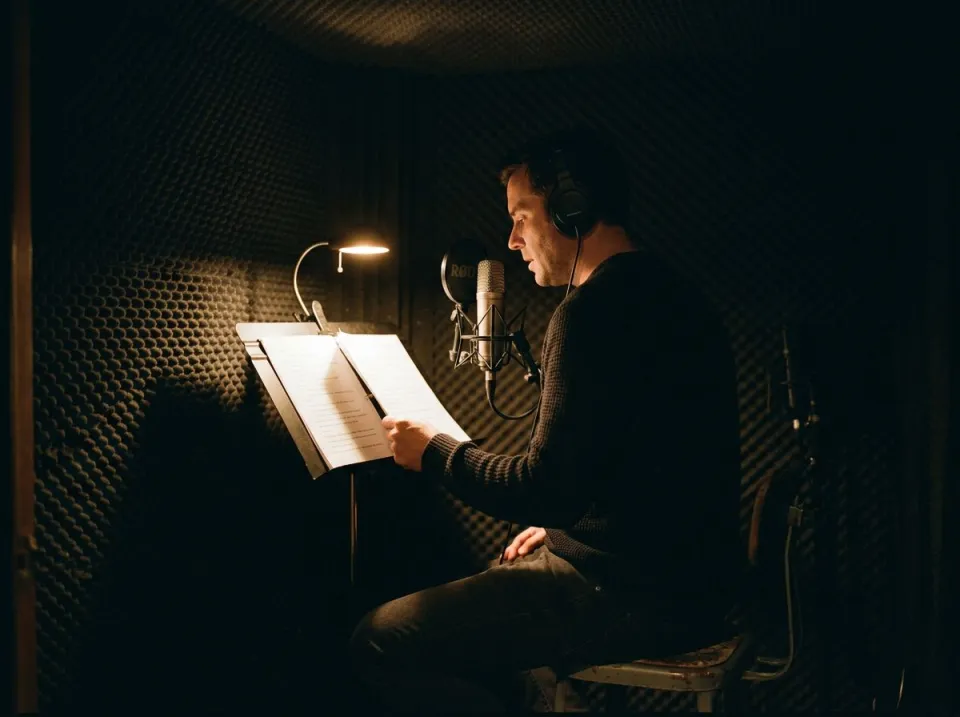
An exposed narrator makes tiny oral sounds easy to hear, especially through headphones. The mouth click remover can reduce those interruptions while leaving the voice's ordinary texture in place. Check the start of phrases, pauses between short words and passages with crisp t or k sounds. A detection on a consonant should be heard before it is accepted, not removed automatically because the waveform looks sharp. Compare several sentences so the rhythm and articulation remain natural. Keep a cleanly named source copy alongside the repair, particularly for long-form work where the same speaker's sound needs to remain consistent across many chapters.
Podcast preparation
A close microphone and a quiet room can make a lip smack conspicuous once a podcast voice is leveled. Use the mouth click remover before deciding whether the track also needs broad cleanup. Review both speakers if the interview has separate recording conditions, because one may produce many more candidate events than the other. The event list is useful when you want to hear and keep individual sounds, including a reaction that should remain untouched. After exporting, audition again at delivery loudness. A repaired file should communicate comfortably without sounding as though useful consonants were softened just to reduce the event count.
Dialogue repair
A dialogue take may fit the picture perfectly except for a small mouth noise inside a phrase. The mouth click remover offers an event-level repair without changing the take's duration. Compare the treated spot under the picture, where the shape of a visible word can make softened articulation more noticeable. Keep a deliberate lip sound or expressive reaction if it belongs to the performance. Repair cannot make every transient disappear harmlessly when it overlaps a consonant. A modest repair or an untreated event can be preferable to a cleaner-looking waveform with a less convincing word. Preserve the original through the final edit.
A focused event-review workflow
Start from an original speech track
Start from the original spoken track rather than a version already passed through several repair stages. Load it into the mouth click remover and let detection finish before evaluating the marked list. If the source is music, choose a different workflow; a speech-focused impulse detector should not decide that every percussion attack is unwanted. This workflow is also different from a static-plus-hiss chain for a rough archive. Pick a short passage with clear mouth sounds and clean consonants when learning the controls, then review a longer file with those distinctions in mind. Keep the source so any uncertain event can be revisited later.
Review marks before increasing sensitivity
Hear a clear click and a doubtful mark, then compare each with its surrounding word. The mouth click remover lets you untick events that should stay original. If smaller unwanted clicks remain, increase Strength and review the new list; the change affects detection sensitivity, so earlier assumptions about which events were marked may no longer apply. Do not optimize for the highest count. The result should reduce distracting oral impulses while preserving articulation. Check an already clean phrase too, because false detections there can reveal that sensitivity is higher than this particular recording needs. Review the actual sound rather than trusting a sharp waveform alone.
Check the repaired words before export
Download the repaired copy and replay the marked passages in your normal editor or player. The mouth click remover preserves time, but the audible result still needs to fit neighboring takes and any later leveling. Keep the unprocessed file until the finished narration, conversation or video has been reviewed. If a consonant sounds softened after assembly, return to the original and keep that event instead of trying to add detail back into an export. This repair solves a focused problem; a remaining room tail, hiss or uneven voice level is a reason to evaluate another tool separately, not automatically repeat the click detector.
Common questions
What kinds of events are repaired?
It targets short oral clicks in spoken material and repairs their high-frequency component. It is different from muting a whole event or cutting time from the file. Hiss, room reflections, plosives and clipping are separate problems that may remain after useful click repairs.
Does mouth click remover strength change the detector?
Yes. Here, Strength is detection sensitivity. Raising it can mark smaller clicks and more uncertain transients; it is not just a louder-or-softer setting for an unchanged list. Review the resulting marks and keep useful speech events rather than chasing the largest detection count.
Is my voice uploaded?
No. It detects and repairs events locally in your browser. It does not send the recording to the cloud speech-cleaning service. Keep the tab available while local processing and export finish, and listen to the result before accepting the repaired copy.
Can I keep an individual event?
Yes. Hear the marked event and untick it to keep the original sound. The event list is useful for intentional lip sounds, expressive reactions and false detections on consonants. Listen in context afterward, because the same impulse can feel different inside a complete phrase.
Will consonants be altered?
Useful consonants can resemble brief clicks, so no perfect-detection promise is made. The mouth click remover offers event review for that reason. Compare t, k and other crisp word starts, especially at higher sensitivity, and keep any mark whose repair changes articulation more than the original click distracts.
Is this suitable for music?
It is intended for speech. Percussion and plucked instruments contain useful sharp attacks that should not be treated as oral clicks. For crackly music transfers, compare the static noise workflow and its local music path, while still checking transient detail against the original source.
Does repair change synchronization?
It repairs selected sound without deleting the event's duration, so the file keeps its timing. When replacing dialogue in a video, still verify alignment in the final editor and compare the repaired word under the picture. Timing preservation alone does not guarantee natural articulation.
Should I repair clicks before leveling?
It is useful to inspect clicks before a loudness stage makes quiet details more prominent, then check again afterward. Keep the mouth click remover result separate from the original. If an event was repaired too strongly, return to its mark rather than repeatedly processing the exported track.