Convert audio
Convert between WAV, FLAC, AIFF, MP3, AAC and Opus in your browser, with tags and cover art kept.
- Runs in your browser. Nothing is uploaded.
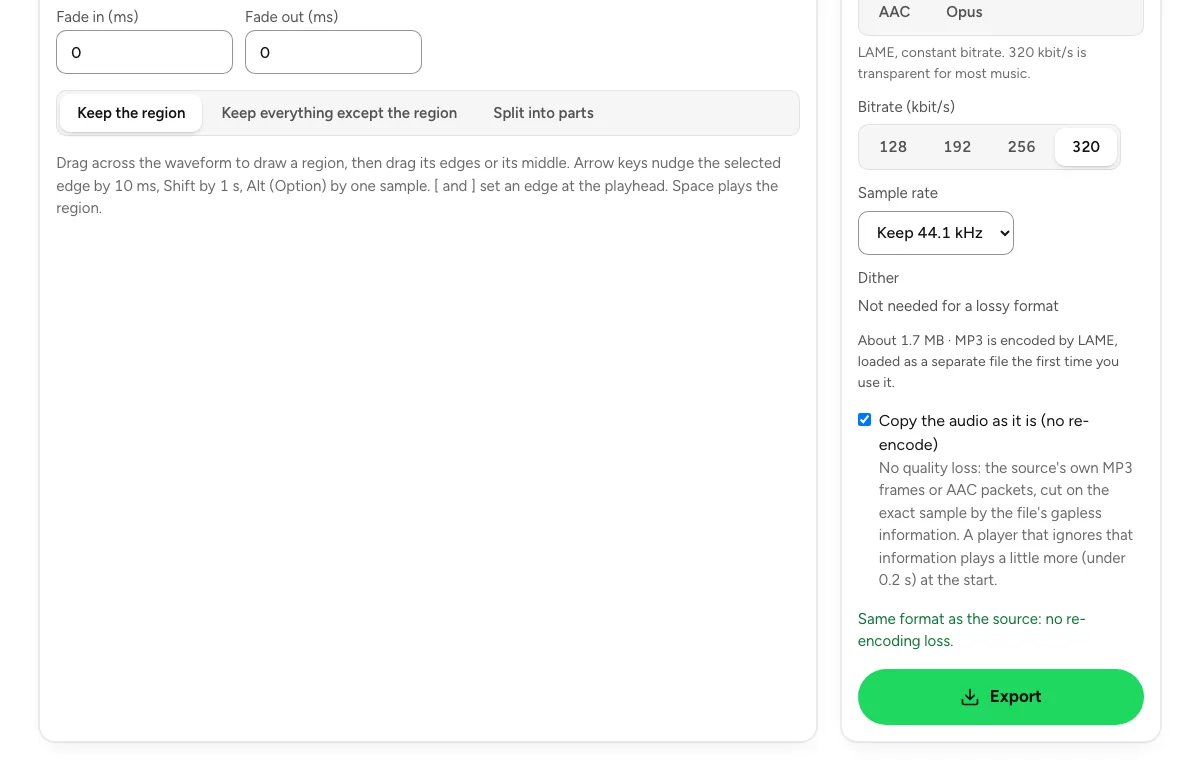
- Space plays AB switch versions
You get the same audio in the format you choose.
WAV · AIFF · FLAC · MP3 · M4A (AAC or Apple Lossless) · OGG · Opus · up to 2 GB per file, any length
Runs in your browser. Nothing is uploaded.
How it works
- What it does
- WAV, FLAC, AIFF, MP3, AAC and Opus, 16 to 32-bit and 44.1 to 192 kHz, converted in your browser. Tags and cover art travel with the file.
- How it converts
- Files are decoded by Rifflo's own WAV, AIFF and FLAC parsers or by your browser for MP3, AAC and Opus. Sample-rate changes use a windowed-sinc polyphase filter with 100 dB stopband attenuation and a passband to 91% of Nyquist. Bit-depth reductions use TPDF dither. MP3 is encoded by LAME at a constant bitrate; AAC and Opus by the encoder in your browser; FLAC by libFLAC. Every output is metered to ITU-R BS.1770 after encoding. MP3, AAC and Opus files are written gapless: they decode to exactly the samples that went in, with no gap or offset (checked against FFmpeg). WAV, FLAC and AIFF at the source's bit depth or more are bit-exact. Channels can be kept or folded to stereo or mono (5.1 with the ITU weights), and ReplayGain can be written into MP3 and FLAC.
Choose the format your next step needs
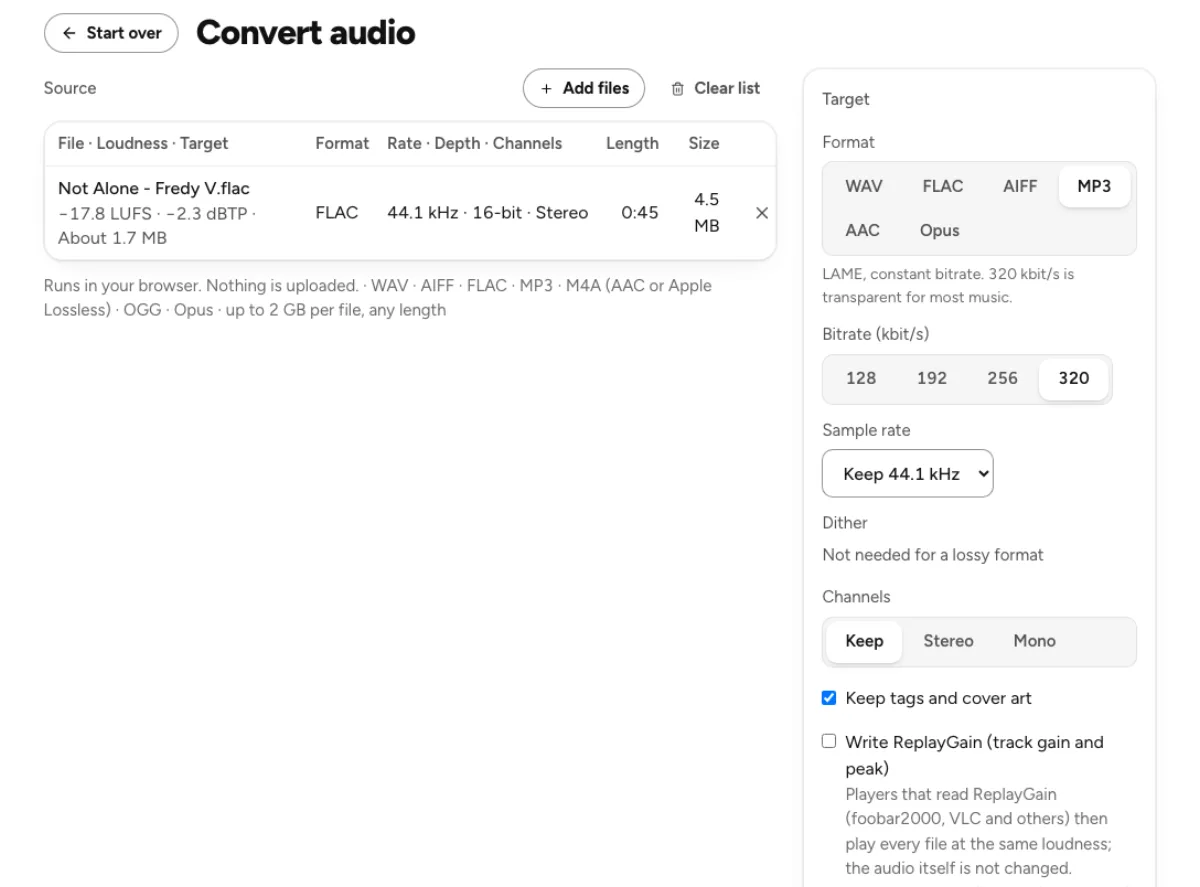
Six output formats for different jobs
Choose WAV, AIFF, FLAC, MP3, AAC in an M4A container, or Opus according to the application receiving the file. Lossless formats suit editing and archiving; lossy formats can reduce download size. The available settings depend on the format and browser. A format choice is not a quality upgrade by itself: converting a compressed recording to WAV preserves the decoded audio in a larger container, but cannot recreate information removed by the earlier compression.
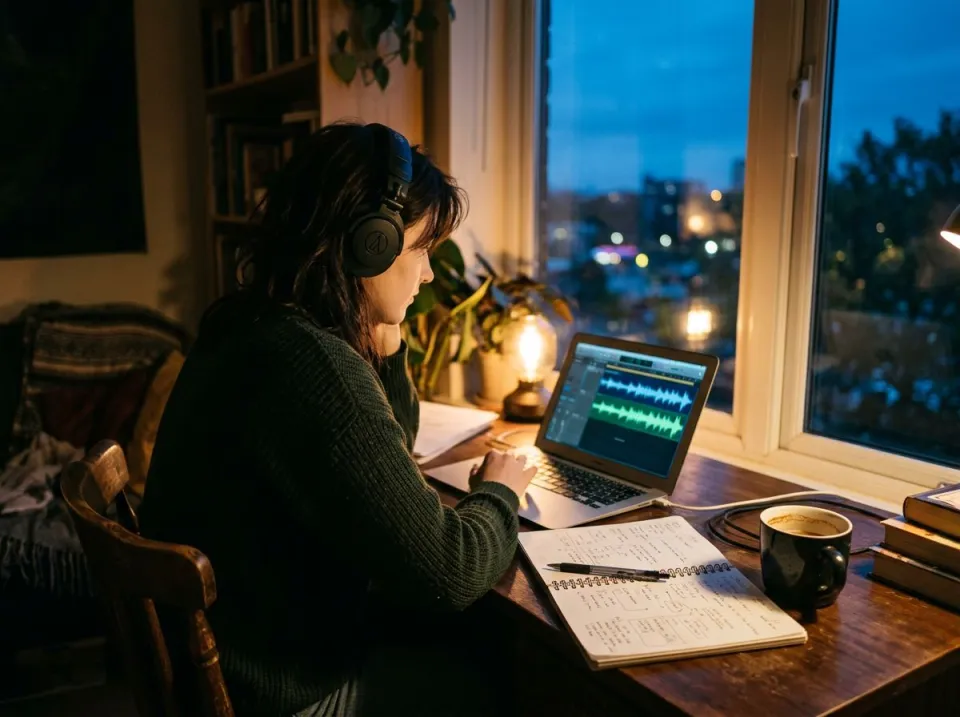
Sample rate and bit depth with a purpose
The converter lets you choose a supported sample rate and, where appropriate, a bit depth or bitrate. Keep the source rate when another rate is unnecessary, or match the destination’s stated requirement. Increasing a low-resolution recording to a larger number does not recover detail. Reducing integer bit depth uses dither in the conversion path. Read the output estimate and remember that uncompressed size depends on duration, channels, sample rate and sample precision rather than the filename alone.
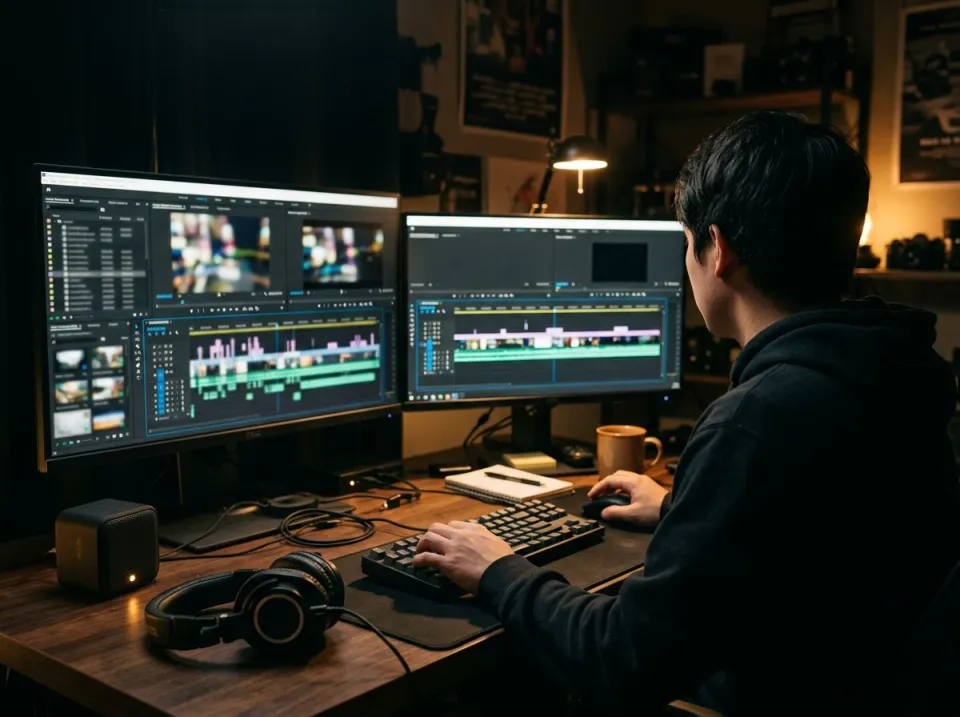
Batch conversion with an output check
Add a collection, set the target and convert the queued files. Save a result separately or gather completed outputs in a ZIP. Keeping tags and cover art transfers supported metadata where the destination format can represent it. Every encoded result is measured for loudness and true peak, providing a check on the delivered version. Those measurements do not mean the converter intentionally masters or normalizes the music: format conversion and creative loudness processing are different tasks. A useful conversion check includes more than opening the file successfully. Confirm the channel count, sample rate, duration and any important artwork or tags in the receiving application. A mono-to-stereo choice does not invent a stereo recording, and a smaller compressed file can still be unsuitable for a workflow requiring lossless input. Choose settings for the actual handoff. Retaining the original and a short note of the chosen target makes later re-exports easier than trying to infer settings from a filename.
Who converts audio files online

Artists preparing release copies
Keep an untouched lossless master and derive the format required by each destination from that file. For example, a download collection may need FLAC and MP3 versions while a collaborator asks for WAV. Make separate batches rather than repeatedly converting one compressed result into another. Check filenames, tags and track counts in the downloaded ZIP before sending it onward. The converter prepares files; it does not establish whether a distributor accepts a particular release or metadata arrangement.

Sample-pack makers standardizing a folder
A folder assembled from different sessions may contain several sample rates, bit depths and channel configurations. Converting to one documented specification makes a pack easier to use, but listen before deciding that every source should become stereo or that every sample needs resampling. Mono sources often work well as mono. Preserve a source archive and check a few representative outputs, especially short transients or seamless material, before processing the rest of a large collection.
Video editors sharing audio
A video workflow may require a particular sample rate or a compact review copy. Use the destination’s settings instead of choosing the highest number available. AAC and Opus availability depends on the encoder your browser exposes, so an unsupported option can require another format or browser. Listen to the beginning and ending of the converted file and verify its duration before replacing audio in a timeline. A smaller review copy remains a review copy; retain the editing master.
How to convert and check a file
Add supported source files
Drop your recordings or choose them from the file picker. The browser reads them locally and shows the source information, including duration and format details when available. Each file must stay within the size limit, and its decoded audio must fit the working-memory guard. Long uncompressed files can require considerably more memory than their compressed originals. For a large batch on a modest device, begin with a few files to confirm that the chosen format and settings work comfortably.
Set one deliberate destination
Select the output container, then choose the relevant bitrate or bit depth and sample rate. Use the estimated size to check that the settings make sense for sharing or storage. Decide whether to retain tags and cover art, then inspect any channel limitation shown by the page. A container with a familiar extension may still contain a codec the next application does not support, so check the actual delivery requirement rather than relying on the extension alone.
Convert, audition and save
Start conversion and let each row finish before downloading. Compare a representative result against its source, checking the opening, a busy passage and the ending. Review the displayed LUFS and true peak of the encoded file, then download individual files or the ZIP. Save the outputs before leaving the tab. If you need to adjust tone, trim an edit or change the key, do that in the appropriate tool and convert the finished version afterward to avoid unnecessary repeated encoding.
Audio format and conversion questions
Will converting MP3 to WAV improve the sound?
No. It produces an uncompressed representation of the audio decoded from the MP3. The result can be useful for an editor that needs WAV, but it will usually be larger and will not restore discarded detail. Keep a lossless original whenever available and generate delivery formats from that source instead of treating a larger converted file as a restored master.
Which format should I choose for archiving?
WAV, AIFF and FLAC can retain audio without lossy encoding when used with suitable source settings. FLAC also compresses the data without discarding samples. Choose a format your archive and playback applications support, keep the original source and verify the downloaded file. An archive should include the metadata and context you need, not only a different extension.
Why is AAC unavailable in my browser?
AAC encoding depends on the encoder exposed by the current browser. Availability is checked rather than assumed, so a disabled option means that browser cannot provide the required encode path. Choose another supported format or try a browser that offers AAC encoding. This differs from playing an AAC file: decoding support does not necessarily imply encoding support.
Is there a file-size or duration limit?
The source-file cap is 2 GB per file, with no fixed duration cap in this converter. Decoded audio also has to fit the memory limit and the capacity of your device. A small compressed file can expand substantially when decoded. If a batch struggles, reduce the batch size or use a shorter working copy without overwriting the original.
Does a higher sample rate create extra detail?
No. Resampling changes how the existing signal is represented; it does not recover frequencies or detail missing from the recording. Use a different sample rate when a workflow requires it, not as an automatic enhancement. Preserving the source rate avoids an unnecessary conversion when the receiving application already accepts it, while a documented delivery requirement can justify a different rate.
Are tags and cover art always identical afterward?
The keep-metadata option carries supported fields into formats that can store them, but metadata conventions differ between containers and players. Inspect important release fields in the resulting files, especially when crossing formats. If you need to correct titles, track numbers, artwork or identifiers, use the metadata editor and verify the saved copy in the application that will actually read it.
Can I convert many files together?
Yes. Add multiple source files, choose a target and convert the queue. Completed files can be saved individually or collected into a ZIP. Batch size is still limited by practical browser memory and processing time, so a manageable group is often more convenient than an entire archive at once. Check that all intended rows completed before treating the ZIP as a finished delivery.
Does conversion upload my recording?
This audio converter decodes and encodes locally in the browser. The source audio is not uploaded for the conversion. Browser codec support, processor speed and available memory therefore affect the available options and completion time. Save your outputs before clearing the page. Using a separate cloud separation or generation feature later is a separate operation with different behavior.
Learn how
Guides and tutorials that use this tool, with real screens and real numbers.