In this article
Most audio editors decode a file, cut it and encode it again. For a WAV that costs nothing; for an MP3 every round of encoding loses a little more. The audio cutter avoids the extra round where the format allows it: lossless files are cut sample-exact, and MP3 and M4A files can be cut by copying their own frames.
Before you start: what stays lossless
| Your file | Export as | What happens |
|---|---|---|
| WAV, AIFF or FLAC | The same format and bit depth | Sample-exact outside the fades |
| MP3 | MP3, both fades at 0 | The MP3 frames are copied, with no re-encoding; the gapless information is rewritten so the file starts and ends on the samples you chose |
| M4A (AAC) | AAC, both fades at 0 | The AAC packets are copied, with no re-encoding |
| MP3 without gapless information | MP3 | Re-encoded, and the page says so |
| Opus or Ogg | Any format | Decoded, and the region encoded again |
| Any lossy file | WAV or FLAC | Decoded once; the lossless target loses nothing more |
The cutter reads WAV, AIFF, FLAC, MP3, M4A, OGG and Opus files of up to 2 GB, with no limit on length, in your browser. Nothing is uploaded.
Step 1: Load the file
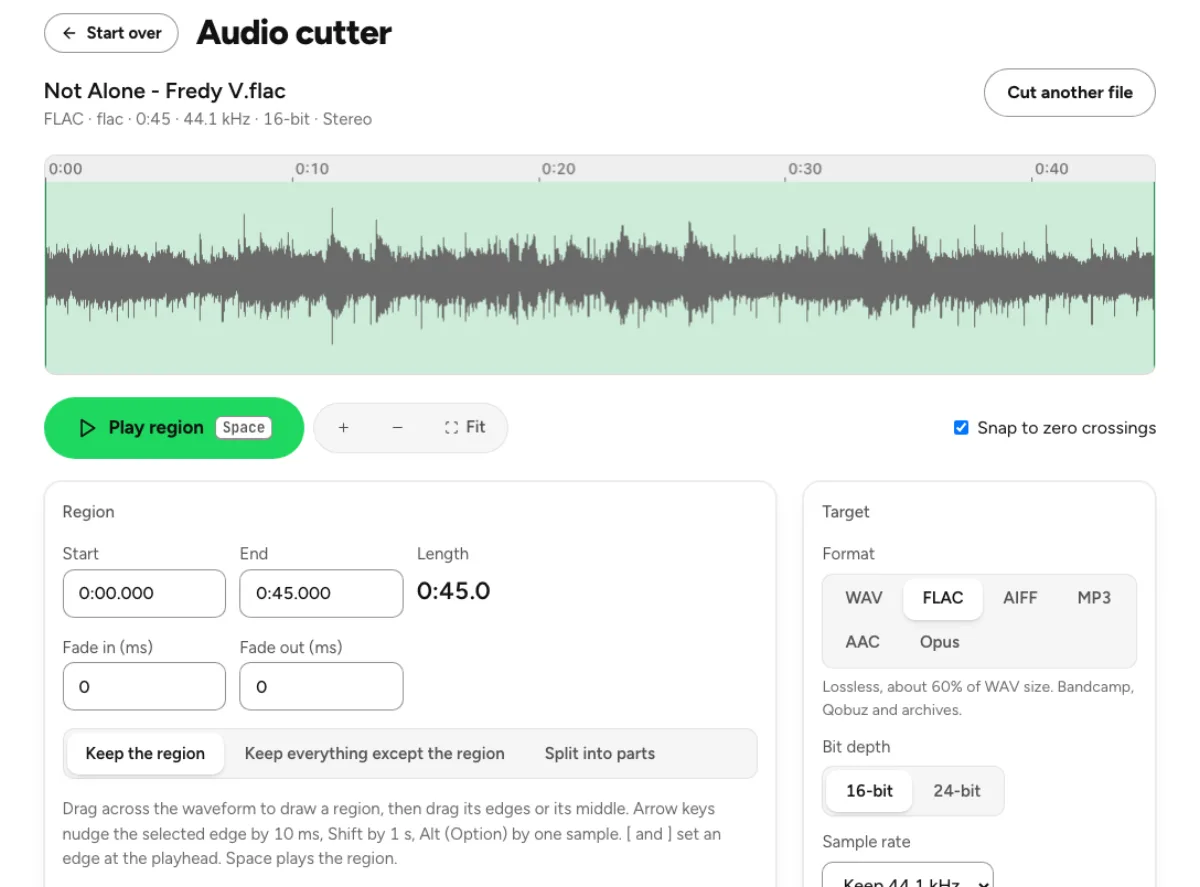
Drop the file on the page, or click the button in the drop box to choose it. A waveform appears when it is ready, with the file's format, length, sample rate, bit depth and channels above it.
Your clickCut your audio
Step 2: Mark the region
Drag across the waveform to draw a region, then drag its edges or its middle. Or type Start and End to the millisecond. Arrow keys nudge the selected edge by 10 ms, Shift by 1 s, and Alt (Option) by one sample; [ and ] set an edge at the playhead.
Snap to zero crossings is on from the start and moves an edge by up to 20 ms to avoid a click. Play region, or Space, plays exactly what you will keep.
Your clickPlay region
Step 3: Keep the source format and leave the fades at 0
Under Target, keep the format your file already has; for a lossless file, keep its bit depth too. For an MP3 or M4A, make sure Copy the audio as it is (no re-encode) is ticked and both fades are 0: a fade changes the samples, so it would need a re-encode, and the page says so.
The green line under the target confirms it: "Same format as the source: no re-encoding loss."
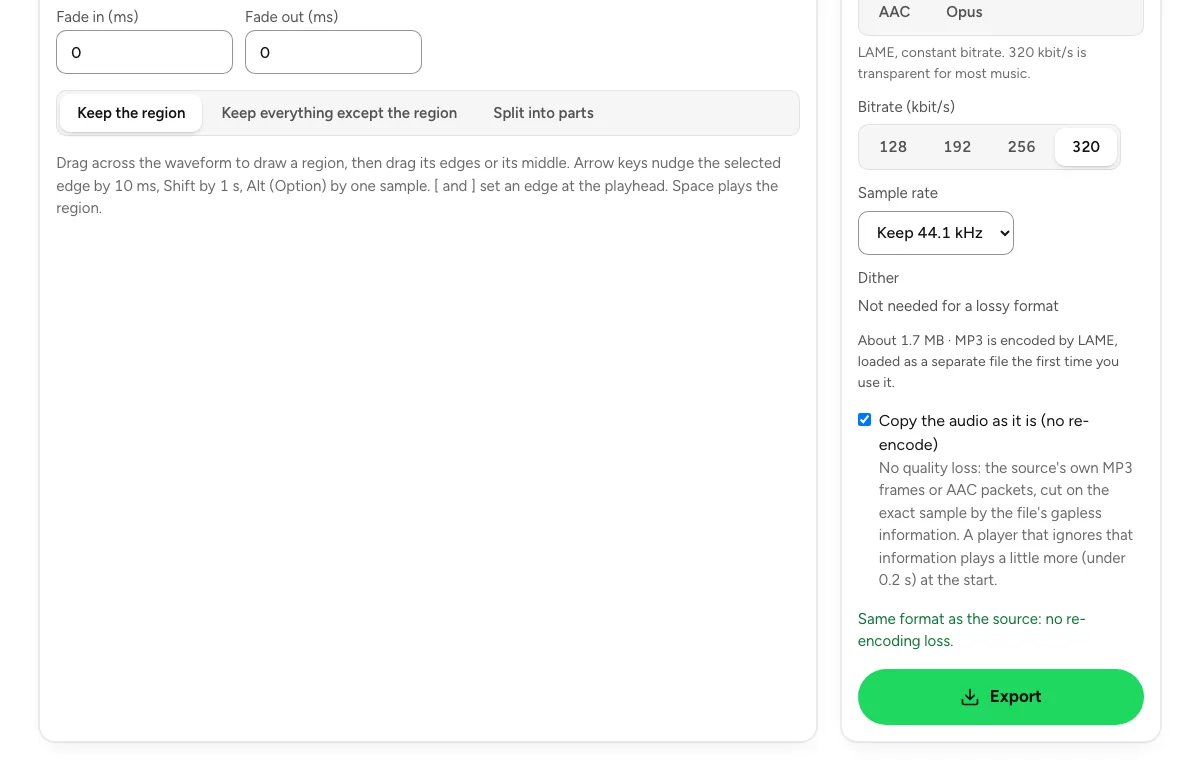
Your clickCopy the audio as it is (no re-encode)
Step 4: Export and download
Export writes the file, and Download saves it. For an MP3 or M4A, the result line says whether it was copied without re-encoding, with the number of frames, or re-encoded because the file had no gapless information to cut on.
One thing to know about copied cuts: a player that ignores the gapless information plays a little more, under 0.2 s, at the start.
Your clickExport
Take out the middle, or split into parts
- Remove a section. Mark it and choose Keep everything except the region; the export closes the gap with a 10 ms raised-cosine join centred on the splice, and the file is exactly the original length minus the region. That handles a false start or a long pause in the middle of a take.
- Split a long file. Split into parts cuts one part every N seconds, or at the tracks of a CUE sheet, named and numbered. MP3 and M4A parts are copied without re-encoding, and all parts come as one numbered ZIP.
Next steps
- Change the format afterwards. Convert audio writes WAV, FLAC, AIFF, MP3, AAC and Opus at 16, 24 or 32-bit and up to 192 kHz, in your browser.
- Fix the tags. The metadata editor writes title, artist, album, cover art and ISRC without touching the audio.
Convert audio
WAV, FLAC, AIFF, MP3, AAC and Opus at 16, 24 or 32-bit and up to 192 kHz, converted in your browser.
Last updated Nov 4, 2026. The figures here come from our own measurements, written up on each tool's page. When a tool changes, this page is checked again.