
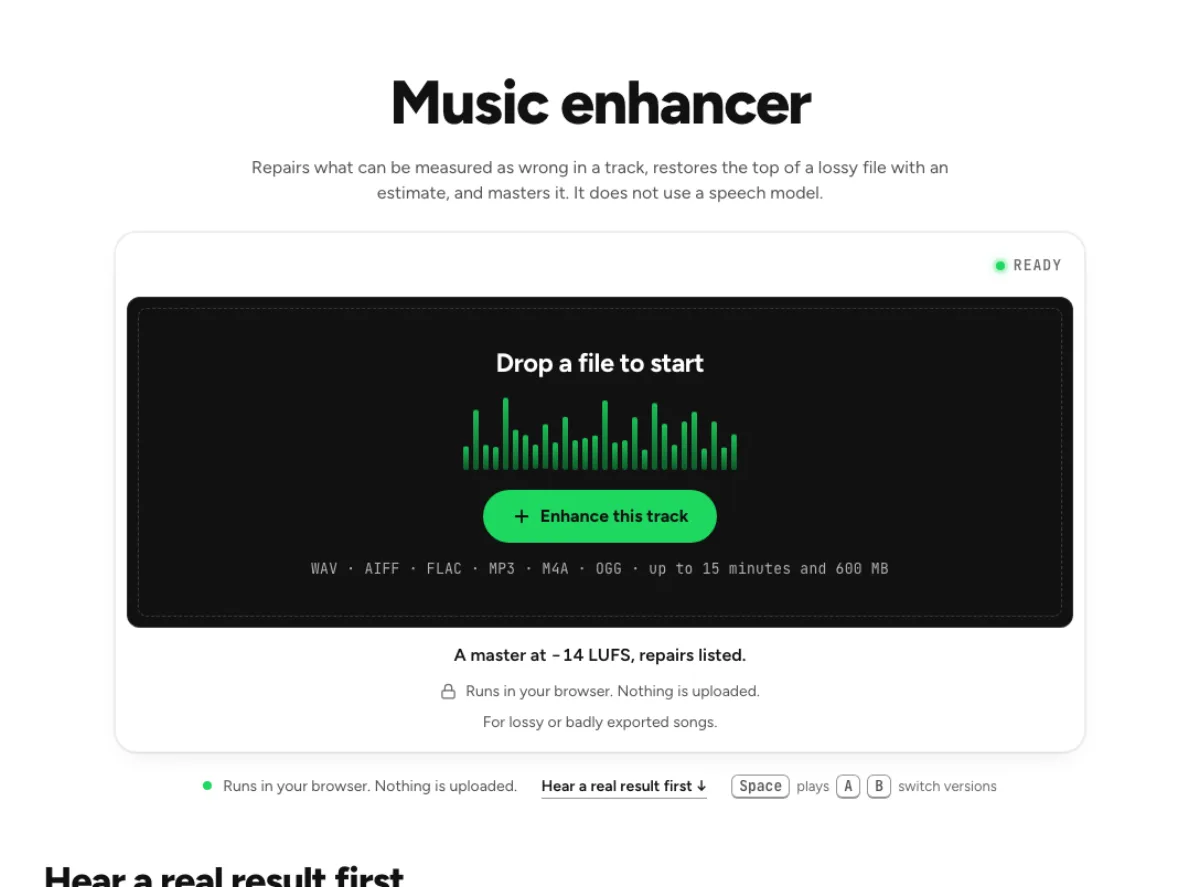
Music enhancer
Repairs what can be measured as wrong in a track, restores the top of a lossy file with an estimate, and masters it. It does not use a speech model.
- Runs in your browser. Nothing is uploaded.
- Space plays AB switch versions
A master at −14 LUFS, repairs listed.
WAV · AIFF · FLAC · MP3 · M4A · OGG · up to 15 minutes and 600 MB
Runs in your browser. Nothing is uploaded.
For lossy or badly exported songs.
How it works
- What to expect
- Best on a lossy or badly exported song. It cannot bring back a performance or un-distort a clipped master.
- How this one works
- Four stages, each only when measured as needed: turns an inverted channel the right way up and centres a lopsided mix; where a lossy encode cut the top, shifts the band below the cut up to fill it, shaped to continue the track's own slope, which is an estimate and not the lost signal; takes down measured hiss; then runs the same mastering chain as the home page to −14 LUFS. Runs in your browser, nothing is uploaded.
What the music enhancer changes
Start with measured repair needs
A music recording does not need a speech model to become clearer or more usable. The music enhancer checks stereo behavior, looks for a characteristic high-frequency cutoff and addresses hiss when the measurements call for it, then applies its mastering chain. It does not invent a new performance or assume every track needs every repair. This workflow is useful for a compromised listening copy, while a healthy file may need little restoration before its level is set. Read the findings and compare the result on exposed instruments as well as the loudest chorus. A bigger change is not automatically evidence of a better musical result.

Understand estimated high-band fill
A lossy encoder can remove the top of a recording, and that missing original waveform cannot be recovered from the compressed file. The music enhancer can detect a suitable cutoff and fill the high band using an estimate shaped from the track's remaining sound. That is estimated extension, not restored original detail. Stereo repairs also follow measurements, including channel polarity and a persistent balance problem. Use the report to know what happened, then listen for tonal or spatial choices that may have been intentional in the source. Keep a lossless original when one exists instead of treating restoration as an upgrade over an undamaged recording.

Master locally toward −14 LUFS
After the measured repair stages, the music enhancer masters toward −14 LUFS. This is an output target within this workflow, not a promise that every release should use the same loudness. The audio processing stays on your device and does not send the song through a cloud speech cleaner. The voice-focused audio enhancer uses a different pipeline. Compare the musical balance and texture at a consistent listening level before deciding that a louder export is preferable. If you need deliberate equalization or more mastering choices, the equalizer and studio provide focused controls rather than automatic restoration of a suspected defect.
When restoration supports a listening copy
Older compressed copies
Sometimes an old demo or a band's reference exists only as a low-quality compressed file. The music enhancer can offer a more comfortable listening copy without claiming to recreate the lost original. Check cymbals, bright percussion and acoustic detail after any high-band fill; an estimate can be useful while still sounding different from the absent source. Compare the processed copy with the best copy you actually have, and retain that copy unchanged. Avoid another low-quality encoding between tests. If a lossless master later becomes available, use it directly rather than assuming the restored compressed derivative now contains more faithful musical information.
Stereo transfer problems
A transfer can have a channel polarity issue or lean persistently to one side. The music enhancer measures those patterns and can correct the supported conditions. Listen to the center image, bass weight and the location of exposed instruments afterward. A deliberately wide or asymmetrical production can also produce unusual measurements, so the report does not replace musical judgment. This processing does not split a mono file into authentic original stereo parts. Preserve the source and compare headphones with ordinary speakers where practical. If the repaired balance changes an intentional arrangement, keep the original or make a deliberate adjustment in a more controlled editing workflow.
Preparing a useful reference
A rough reference can be hard to compare with other tracks when restoration problems and low level dominate the first impression. The music enhancer combines measured repair with a −14 LUFS mastering target so you can audition another presentation. That is useful for a listening copy, not a substitute for checking the mix or the requirements of a specific release. Compare the result on a sparse section and a dense one, then listen through a transition between them. Keep the raw mix or transfer available. Final artistic choices about dynamics, tone and stereo placement should not be delegated to an automatic finding merely because its output sounds more immediately prominent.
Read findings, then make a musical decision
Load the best musical source
Load the best version of the song you have and preserve it separately. The music enhancer is a local music workflow, distinct from the speech repair on the audio enhancer page. Let its analysis finish and read which conditions it found before judging the output. If your goal is only a particular tonal change, the equalizer may be a more direct choice; if you need specific mastering controls, open the studio. Restoration is most useful when the source has a plausible measured restoration issue. Include a quiet passage, exposed stereo material and a loud section when deciding whether its automatic choices suit the recording.
Compare more than loudness
Listen at a consistent playback level so the mastering target does not decide the comparison by itself. The music enhancer may alter stereo balance, estimated high-frequency content and a detected hiss floor before setting the output level. Check the center vocal or lead instrument, the bass and the final cymbal decay. A good reference result should remain convincing throughout the arrangement, not only in the loudest chorus. If the report identifies a cutoff, remember that the new high band is an estimate. A brighter result can be an option without being a more faithful reconstruction of the original recorded performance.
Label the saved derivative clearly
Download a separate output and label it as a restored or enhanced listening copy. The music enhancer does not turn a compressed source into a new lossless master containing the missing original information, even if you export it in a lossless container. Check the saved version in your normal player and compare another section before using it in a project. Keep the original and any genuine lossless master distinct from the derivative. If you later need a different loudness or artistic balance, return to the source and the appropriate mastering controls rather than repeatedly processing an already estimated and mastered output.
Common questions
Is this using a speech model?
No. It uses local measured repair stages and a mastering chain, not a cloud speech model. This matters because spoken-voice cleanup can alter instruments and decays. The audio enhancer and speech enhancer are separate voice-oriented pages; their names do not make them interchangeable with this workflow.
What loudness is targeted?
It masters toward −14 LUFS after its repair stages. Treat that as the tool's target rather than a universal requirement for every release. Compare tone and dynamics at a consistent level, and use the mastering studio when you need a more deliberate output choice.
Can lost MP3 detail be restored?
It can estimate a high band when it detects a suitable lossy cutoff, but it cannot recover the exact waveform the encoder discarded. A brighter result is an alternative listening copy, not proof of original information restored. Prefer a genuine lossless source whenever one is available.
Is my song uploaded?
The music enhancer's analysis, repair and mastering run locally in your browser. It does not upload the song for speech cloud processing. Keep the tab available until processing and export finish, and retain the original file before deciding whether the local result is useful for the project.
Which stereo problems can be fixed?
It measures supported polarity and persistent channel-balance conditions and can repair them when detected. Unusual stereo measurements can also arise from intentional production choices, so listen afterward. It does not recreate authentic stereo multitracks from mono or make every spatial effect into a defect.
Why were few repairs made?
A healthy source may have no supported defect that needs restoration. The music enhancer does not add high-frequency fill or noise treatment simply to create a dramatic change. Read the findings and compare the level stage separately, rather than assuming a small repair means the analysis failed.
Will reverb be removed from a song?
It is not a dry-multitrack recovery tool. Its measured stereo, lossy and hiss repairs do not guarantee removal of deliberate reverb or delay baked into a mix. Treat room-effect removal as a different problem and preserve musical decays when evaluating any processing choice.
Should I use the music enhancer on a finished master?
Keep the finished master untouched and audition a separate copy if you want to test automatic restoration. Its repair findings and −14 LUFS target may not match the producer's artistic or delivery choices. Prefer the original when the automatic changes alter an intentional tone, balance or dynamic shape.