
Online Audio Mastering Studio
Shape your mix with EQ, compression and loudness controls. Compare at matched volume, then export the version you choose.
Drop a mix to start
WAV, AIFF, FLAC, MP3, AAC or Opus · up to 20 minutes. Mastering runs in your browser. This file isn't uploaded.
A mastering workspace with decisions you can hear
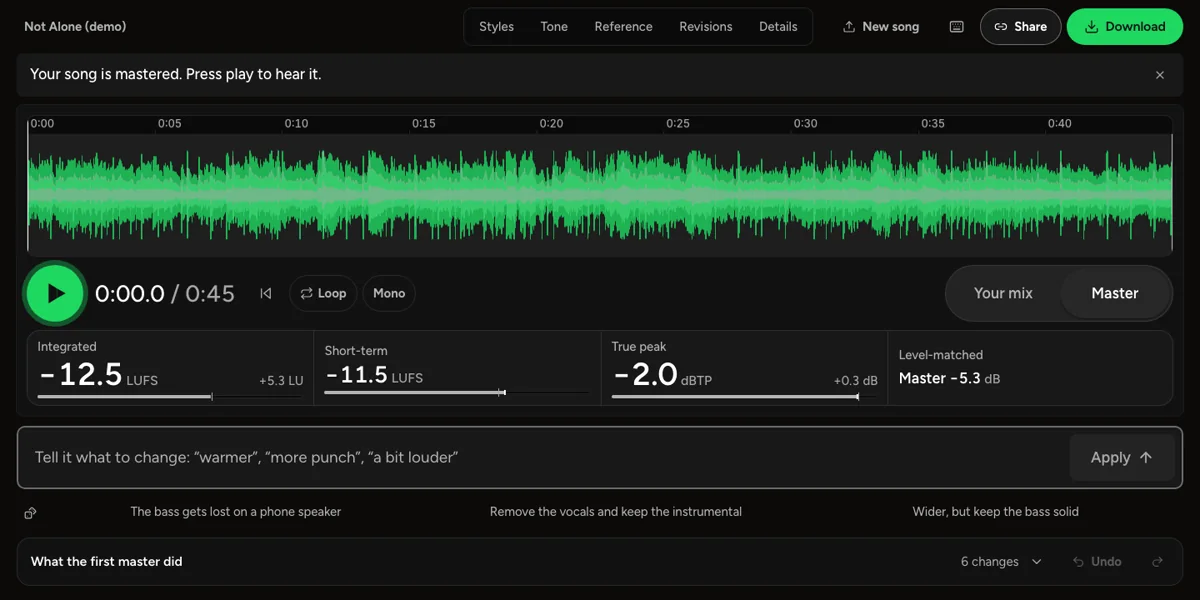
A starting master rather than a final verdict
Load a mix and the studio offers an automatic starting recipe built from measured audio features. The workspace exposes tone, dynamics and loudness decisions so you can listen and revise them rather than accepting an unexplained finished file. An automatic suggestion is a starting point, not proof that the arrangement, recording or mix is ready for release. Source problems such as clipped vocals, distorted buses or an unbalanced instrument can require changes in the original session that stereo mastering cannot undo.
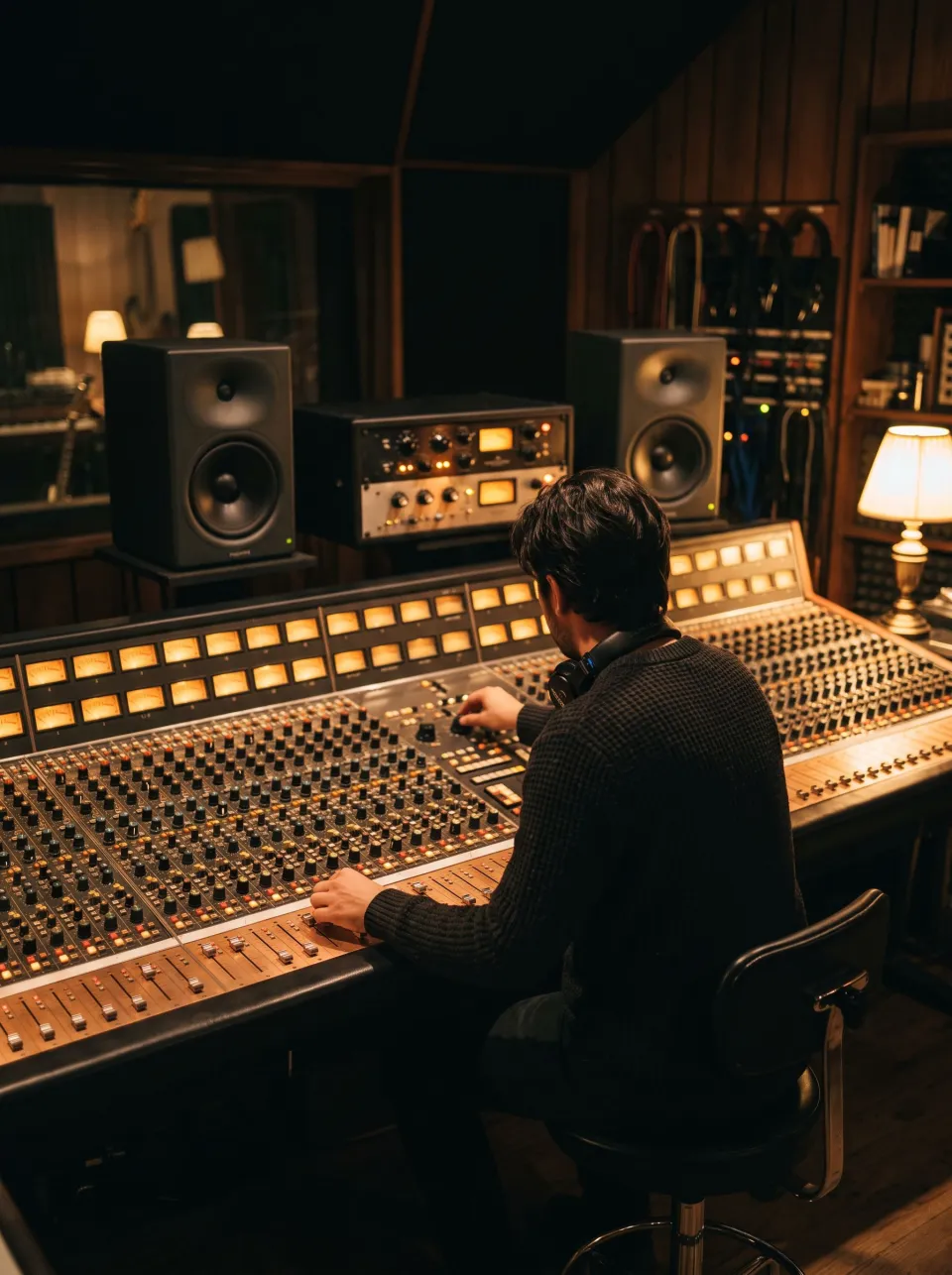
Matched comparisons and readable revisions
Switch between the original and processed versions at a matched listening level, then compare alternative revisions when making a decision. The purpose is to hear tonal balance, transient shape and density without automatically favoring the louder option. Waveform views, meters and change descriptions add context, but the musical result still needs listening. Keep revisions that answer a specific question, such as a gentler top end or less aggressive limiting, rather than building an increasingly processed chain only because more controls are available.

Local audio work with explicit remote features
The core audio analysis, manual processing and rendering use the browser’s audio engine and local DSP. That does not make every studio action local. Natural-language requests can involve remote AI interpretation, and cloud separation or enhancement can involve uploading audio through a separate operation. Read the relevant confirmation and current quota information before choosing those actions. Distinguishing a local mastering adjustment from a remote model request gives you a more accurate understanding of the workflow than a blanket claim that nothing ever leaves the device.
Who uses the online mastering studio

Artists finishing a home-produced mix
Use a clean stereo bounce and compare a modest mastering pass against it before considering more dramatic processing. Check the vocal, bass and busiest chorus as well as the introduction. If a single element remains wrong in every version, return to the mix when possible rather than asking the master to compensate for one track. Keep the original bounce and export a new master as a separate file. A working browser studio can help you make a release decision without replacing careful arrangement and mixing.
Producers evaluating alternate directions
Try a style or a small set of manual changes to test whether a track benefits from more warmth, clearer transients or a different loudness balance. Compare revisions on the same section at matched level and describe what each one improves or loses. A denser version may suit one section while making another feel constrained. Use references for perspective, not as an instruction to copy a number. Different performances and arrangements can call for different mastering choices even within the same genre.
Collaborators keeping decisions traceable
Revisions and change descriptions help explain why a version was chosen. Compare the relevant alternatives before sending a file to someone else, and name the export clearly so it can be distinguished from the mix and earlier masters. Local browser project storage is convenient, but it should not be your only copy of important source audio or final deliveries. Download outputs and preserve the surrounding project records you need for a reliable handoff, including any separate cloud steps used along the way.
How to compare and export a master
Load the mix and choose a representative passage
Open a supported recording or the demo and let the workspace initialize its analysis and comparison. Begin with a passage containing the important balance decisions: perhaps the full chorus rather than a nearly silent intro. Preview selection helps you investigate a section, but a final master must also work through the song’s transitions and ending. Listen to the unprocessed version first. The studio cannot establish a useful direction if you never compare the suggestion against the recording you actually brought in.
Revise one goal at a time
Start with the automatic or chosen style recipe, then make a small tonal, dynamic or loudness adjustment. Use the matched comparison and meters to understand the consequence. A prompt can describe a goal in ordinary language, but its interpretation still needs review and may involve the remote AI flow. A request to isolate or enhance a source is a separate cloud action when offered. Read the proposed change and confirmation rather than assuming any sentence automatically becomes a harmless local effect.
Check the whole result and export deliberately
Compare the chosen revision against the original across quiet and loud sections, then review the export’s format, length and measured loudness or peak information. Avoid judging only the preview window or a single exciting moment. Choose a suitable lossless working master before making compressed delivery copies when the workflow allows it. Save the downloaded file and listen in the receiving application. Use the LUFS meter or loudness penalty tool for an additional check, while keeping the musical decision grounded in the sound.
Mastering, privacy and AI workflow questions
What does AI mastering mean in this workspace?
The studio combines an automatic starting recipe, readable processing controls and optional natural-language revision requests. Audio is processed through defined DSP rather than a guarantee that an AI has made a perfect final master. A prompt can help describe a direction, but you still need to compare the proposed change and decide whether it improves the recording.
Is every mastering action local?
No. Core audio DSP, manual adjustments and rendering run locally, while prompt interpretation can involve a remote AI request and separate cloud tools can upload audio for processing. Read the confirmation and quota information attached to the action you choose. Do not infer the behavior of a cloud operation from the fact that the waveform and comparison player are displayed in your browser.
Can mastering repair a clipped or badly balanced mix?
It can shape the combined recording, but it cannot reliably restore information lost to clipping or independently rebalance every instrument in a stereo file. When a problem comes from a particular source track, fix it in the mix if you can. Use the studio for finishing decisions that work on the whole signal rather than treating it as a replacement for source-session control.
Why does matched A/B matter?
A louder version often seems more impressive even when the tonal or dynamic change is unhelpful. Matched listening reduces that distraction so you can compare clarity, impact and texture more fairly. It does not mean the exported files must have identical loudness. The export settings and measured result describe the delivery level separately from the comparison gain used while auditioning.
Should I master every song to one streaming number?
No single loudness value determines whether every recording sounds right. Consider the style, dynamics, sequencing and the destination’s current requirements. Playback normalization can change gain without undoing compression already printed into the master. Use the meters and loudness penalty page to understand the tradeoff, then choose a version that still works when compared at a fair listening level.
Can I use a reference track?
The workspace’s reference and comparison features can provide context for balance and loudness decisions. Choose a reference that is relevant to the musical goal and compare useful sections rather than forcing your recording to match every measured detail. Different instrumentation and arrangements naturally produce different spectra and dynamics. A reference should guide a listening question, not eliminate judgment about the source mix.
Are browser projects a permanent archive?
Local project storage is useful for returning to work, but browser storage can be cleared, restricted or unavailable on another device. Keep your own copies of the source mix, final exports and any essential project records. A successfully rendered preview is not the same as a saved delivery file. Download the versions you need and verify them before closing an important session.
What should I check before sharing the master?
Listen beyond the preview section, confirm the intended version and export settings, and audition the downloaded file in another player. Check transitions, the ending, integrated loudness and true peak where relevant to the destination. Keep an untouched mix for comparison. If cloud processing or a generated asset was part of the workflow, retain the information you need to identify that step when handing the result to collaborators.
Learn how
Guides and tutorials that use this tool, with real screens and real numbers.
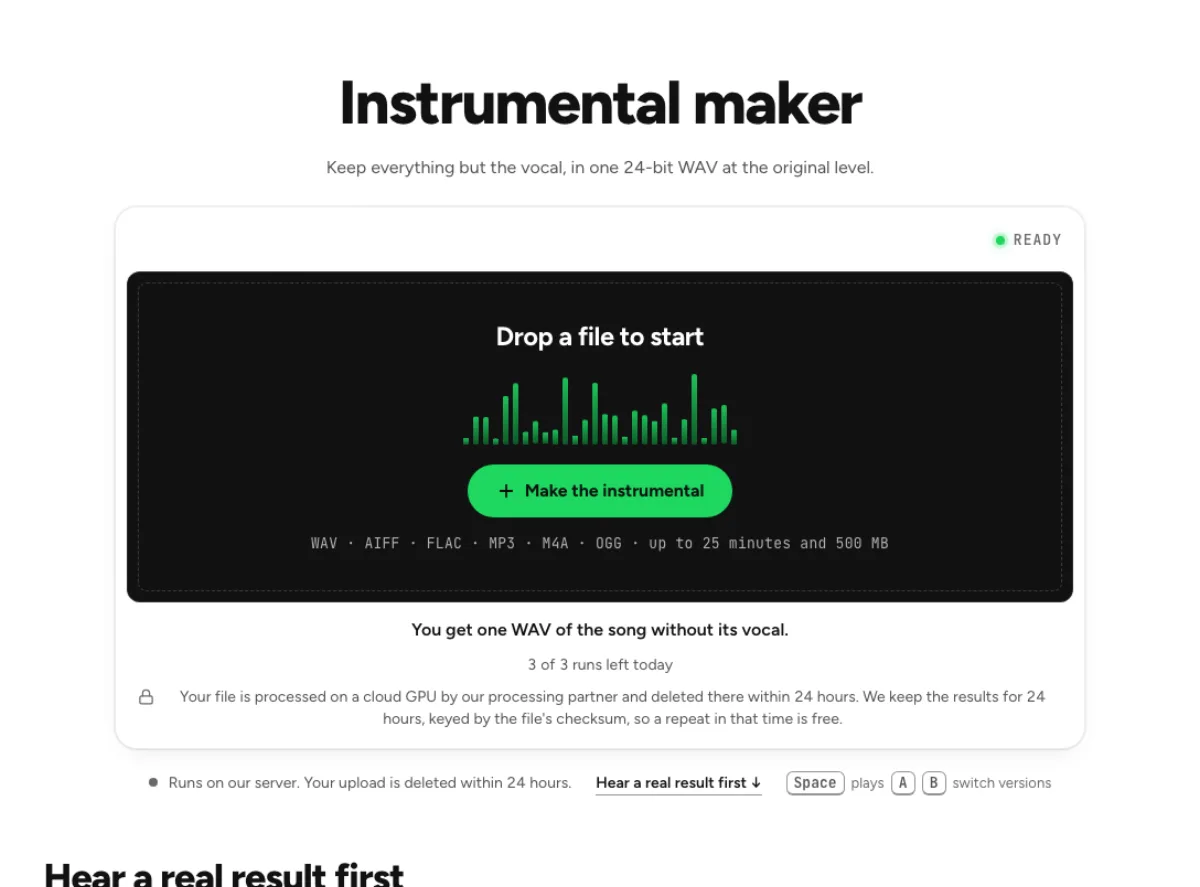 Make an instrumental or an acapella from any songFive steps on the instrumental maker: hear a real result, drop the song, confirm the run, compare and download. Then the same for the vocal alone.
- How to master a track before releaseWhat mastering changes, how loud a song should be for streaming, and how to check your master the way Spotify, Apple Music and a phone speaker will play it.