In this article
An instrumental is the song without its vocal; an acapella is the vocal without the song. Both come out of the same separation. This tutorial makes the instrumental with the instrumental maker, then shows the one change for the acapella.
Before you start
- A song file: WAV, AIFF, FLAC, MP3, M4A or OGG, up to 25 minutes and 500 MB.
- A run. Without an account you have 3 runs a day; signed in, 10 a month; Pro has no limit. Running a song you already ran within 24 hours is free.
- Where it goes. This is a cloud step. Your song is sent to Replicate, our processing partner, and deleted there within 24 hours.
Step 1: Hear a real result first
Under the drop box, the page plays real output from this tool on three openly licensed songs. Press play on the Instrumental row, then on Original, and listen to what the separation leaves. It costs no run and uploads nothing.
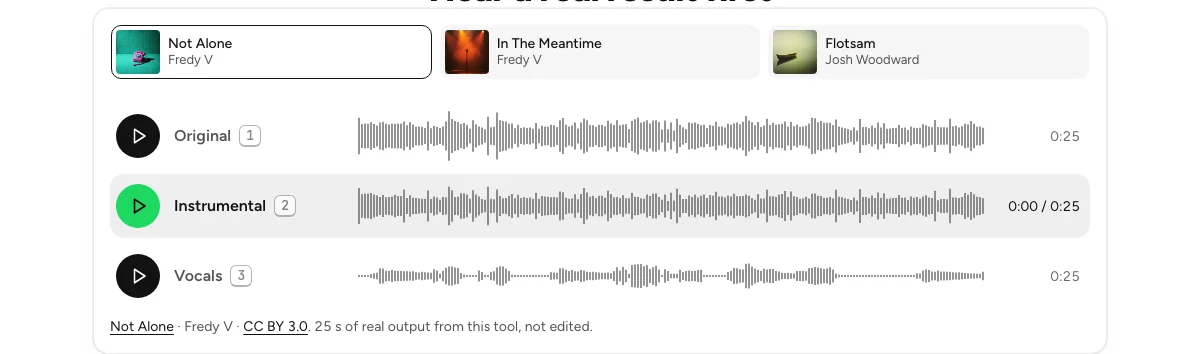
Your clickPlay the Instrumental row
Step 2: Drop your song
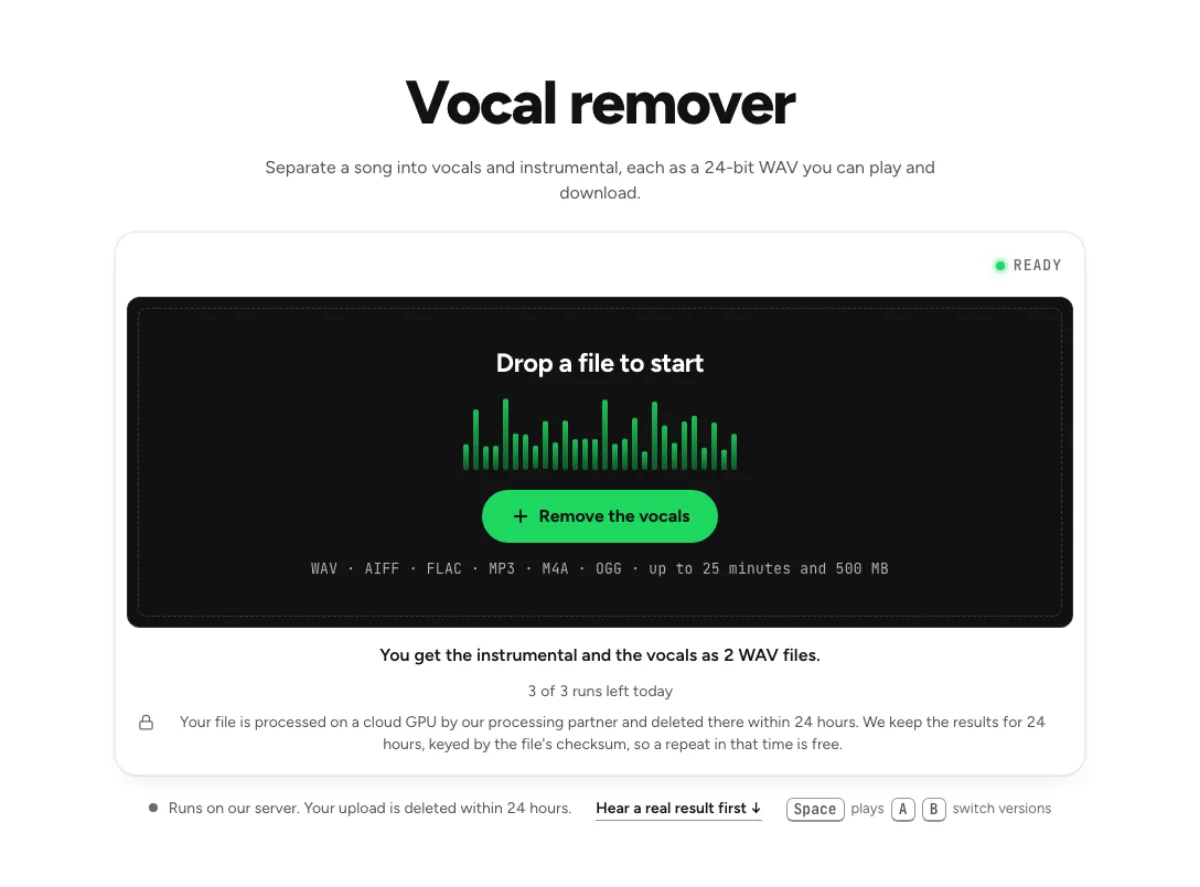
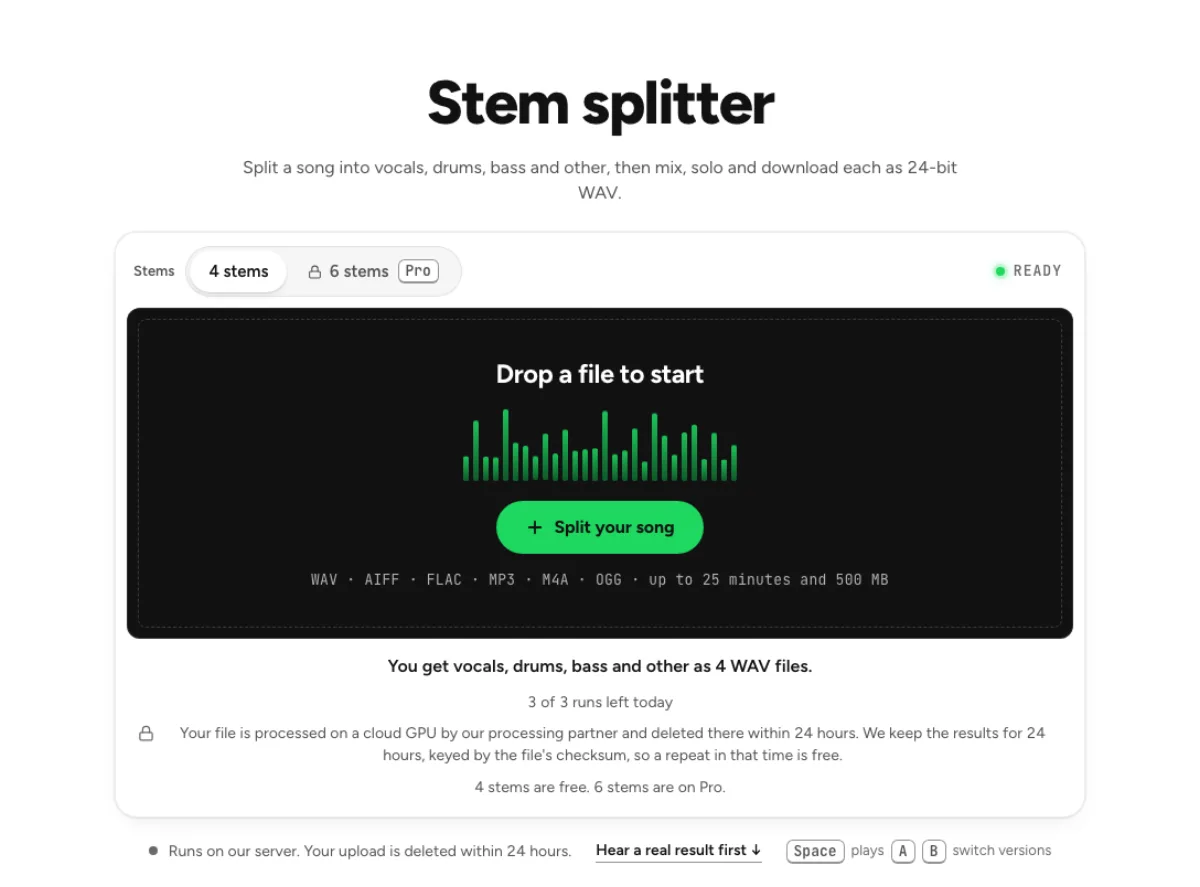
Drag the file onto the dark drop box, or click the button in it to choose the file. Under the box the page says what you will get, one WAV of the song without its vocal, and how many runs you have left. Nothing is uploaded yet.
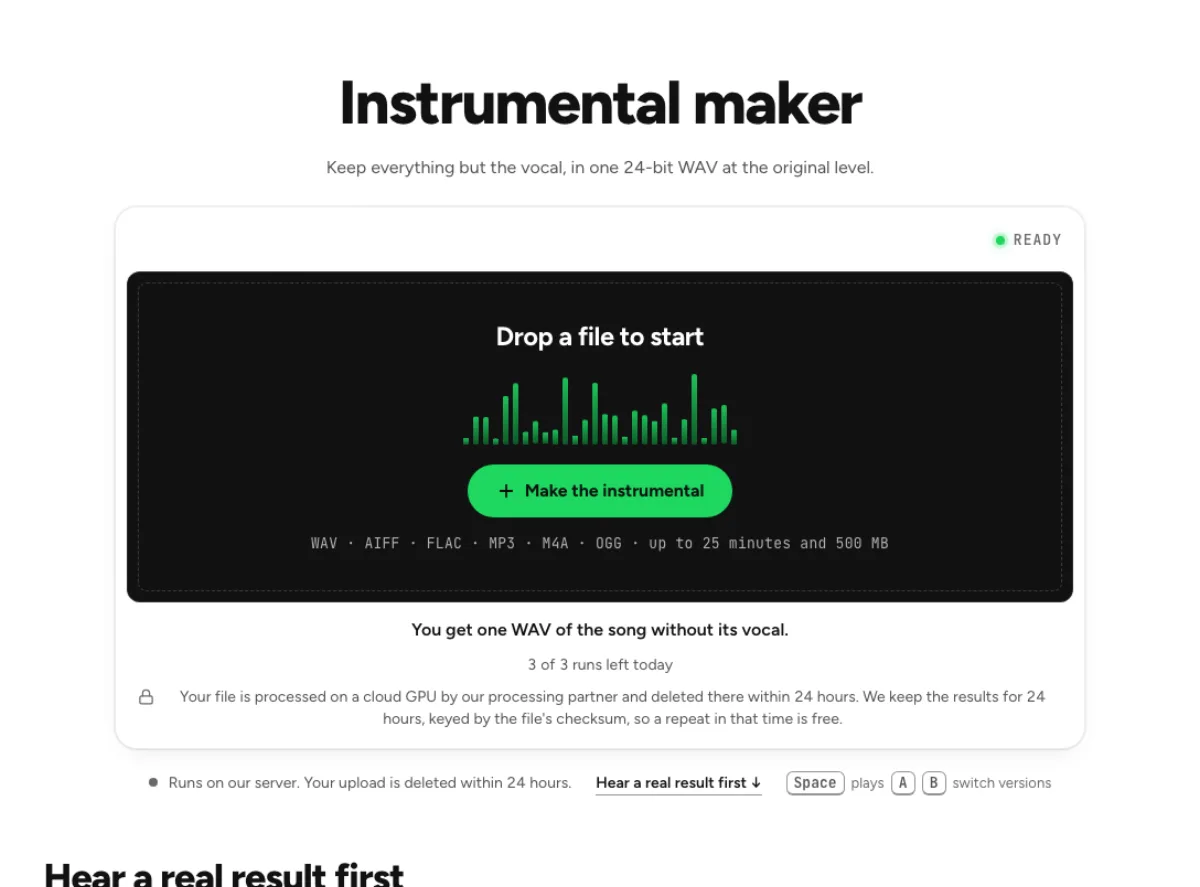
Your clickMake the instrumental
Step 3: Confirm the run and follow it
The page shows the file you picked and the run it will use, and waits for you. Confirm, and the progress panel names each phase: upload, queue, processing. The first run after a quiet hour takes 1 to 3 minutes while the model starts; after that a run takes seconds.
If you change your mind, Cancel before the model starts and nothing is spent: the run comes back.
Your clickMake the instrumental
Step 4: Compare and download the instrumental
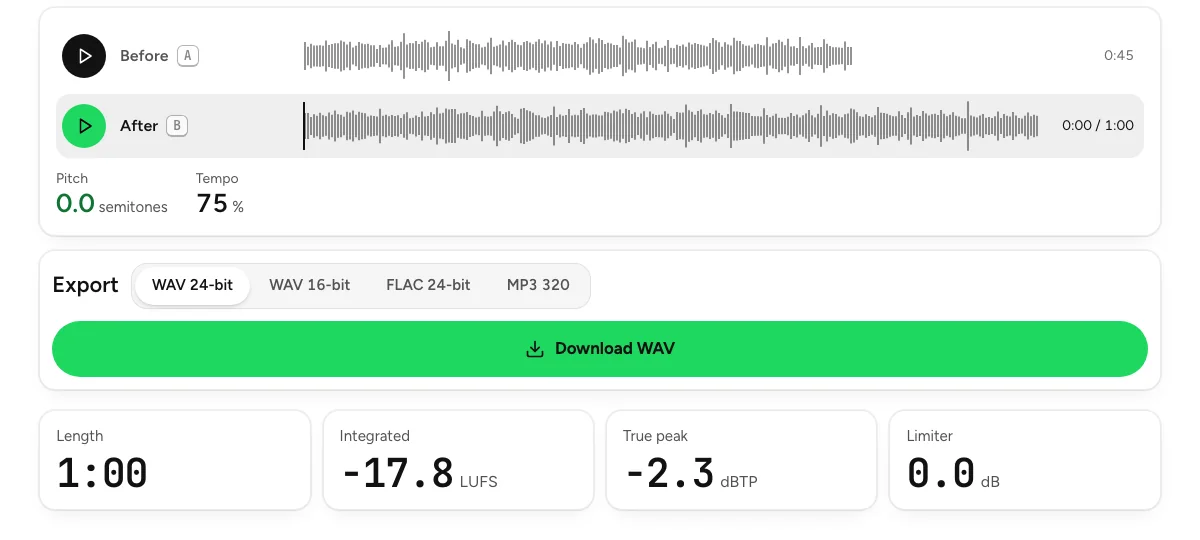
Instrumental and Original share one player. Toggle between them during a verse, where a missing voice is plain to hear, and in the loudest chorus, where the voice and the band overlap most.
Download instrumental saves one 24-bit WAV at the original level and the same length as the song, so it can replace the full mix on a timeline without moving anything. If you want a trace of the voice left in, open Adjust the mix, set the balance, and write WAV or FLAC.
Your clickDownload instrumental
Step 5: For the vocal alone, use the acapella extractor
The acapella extractor runs the same separation and keeps the other half: one 24-bit WAV of the vocal, at your file's own sample rate (32-bit float if the vocal peaks past full scale). It keeps the timing of the source, so it drops back onto the original song's grid.
A bare vocal can sound exposed. Adjust the mix keeps the instrumental on a second fader, so you can bring a little back, for example at −30 dB, before you export.
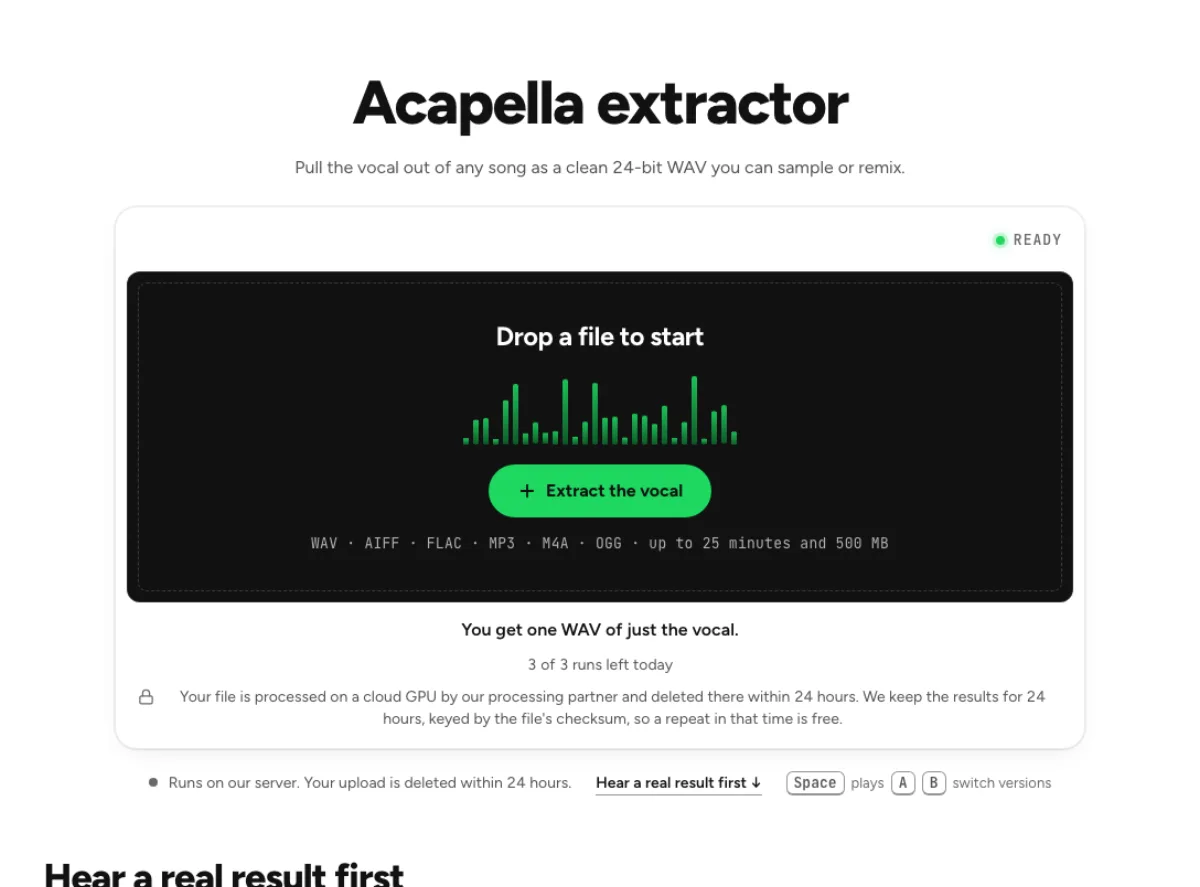
Your clickExtract the vocal
What you end up with
| File | Format | Notes |
|---|---|---|
| Instrumental | 24-bit WAV | Original level and length; every voice removed |
| Acapella | 24-bit WAV, your file’s sample rate | 32-bit float only if it peaks past full scale; lead and harmonies together |
If something is not right
- You can still hear the voice in places. Check the densest part of the song; that is where the separation has the hardest job. If you need the cleanest possible result for a release, compare with the original on good headphones before you commit.
- The harmonies disappeared too. Every voice counts as vocal. To keep the backing vocals in the instrumental, or to split the lead from the harmonies in the acapella, use the lead and backing vocal splitter.
- No runs left. The count resets each day without an account, or each month signed in. A repeat of a file you already ran within 24 hours is free.
Next steps
- Master it. Send to mastering opens the instrumental in the mastering studio, where you set its final loudness and compare at matched level.
- Change the key. The pitch changer moves it up to 12 semitones either way with the tempo unchanged, in your browser.
- Mind the rights. Separating a vocal does not change who owns the song; a commercial track in a published video still needs a licence.
Last updated Nov 4, 2026. The figures here come from our own measurements, written up on each tool's page. When a tool changes, this page is checked again.