In this article
Mastering is the last step between a finished mix and the stores. It does not fix a mix; it finishes one: a little tone correction, some control of dynamics, the final loudness, and a ceiling so the file survives conversion to the formats streaming services use. This guide walks through what to aim for, how to master in the browser with the Rifflo mastering studio, and how to check the result before you upload.
Part 1What mastering changes
A master usually touches four things:
- Tone. Broad EQ moves so the track sits next to others in its genre, not surgical fixes.
- Dynamics. Gentle bus compression and, at the end, a limiter that holds the peaks.
- Loudness. The level the track plays at, measured in LUFS (loudness units relative to full scale).
- True peak. The highest level between samples, in dBTP, kept under a ceiling so lossy encoding does not clip.
In the studio, the automatic master analyses your mix and sets a starting point called Balanced: loudness toward the platform target, tone corrected toward the genre median, no colour. Six named styles push it one way or another, each described by what it does to the parameters:
| Style | What it does |
|---|---|
| Silk | Softer top, slower compression, wider. For vocal-led and acoustic mixes. |
| Punch | Hits come forward. For drums-forward pop, hip-hop, electronic, rock. |
| Wall | Louder and denser; the limiter works harder, only up to the engine’s guard. |
| Glass | More air and separation, less low-mid. |
| Tape | Saturation with a rounded top and more low-end weight. |
| Club | Mono-safe low end and a check on the side channel, for systems that sum to mono. |
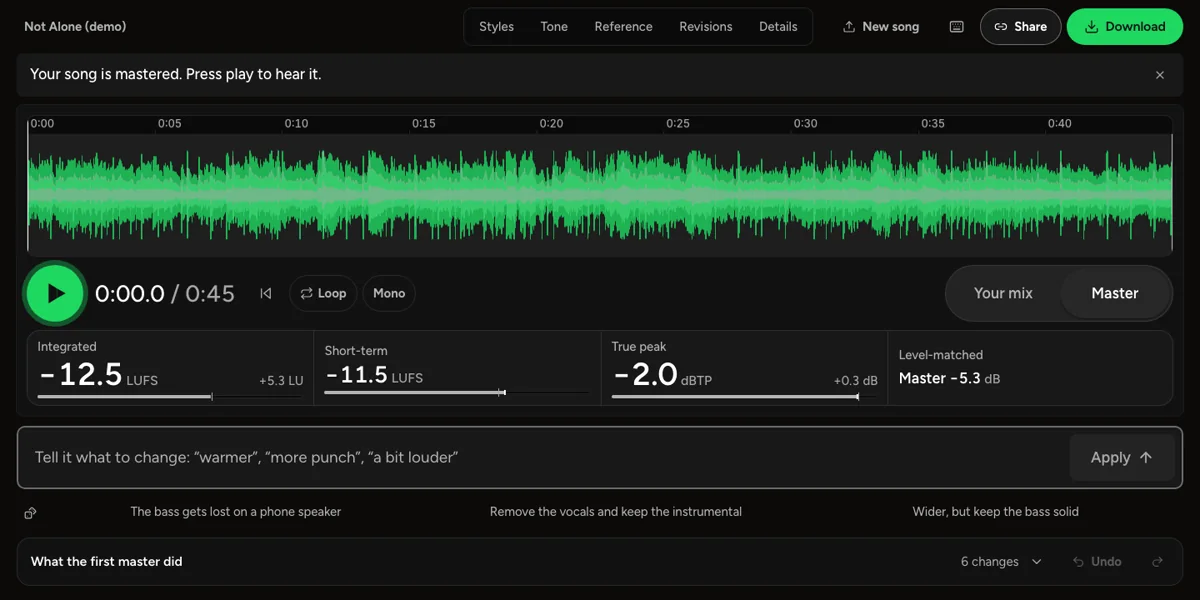
Every change the engine or a style makes is listed under the player, in What the first master did, with Undo, so nothing happens to your track that you cannot see.
Part 2How loud should a song be for streaming?
Streaming services turn every track to their own playback level. Spotify's Normal setting plays tracks at −14 LUFS; Apple Music sits nearer −16. A louder master does not play louder; it gets turned down. A master at −9 LUFS, for example, is turned down by 5 dB on Spotify and 7 dB on Apple Music, and keeps whatever its limiter took away to get that loud.
Spotify also raises quiet tracks, but only until the track's true peak reaches −1 dBTP. So on Spotify a dynamic master under −14 is brought up, as far as its peaks allow.
Part 3Why the louder version is not the better one
Louder sounds better at first, which makes most before-and-after comparisons unfair. The studio compares your mix and the master at matched loudness: it turns the louder side down and shows how many dB it took off. Switch matching off if you want to hear the raw difference.
The engine also decides how loud to go from measured damage rather than a fixed target. On the loudest 30 seconds it raises the level above your mix's own loudness only while the pumping stays at or under 0.75 dB and the transients lose at most 1 dB. It never makes the master quieter than your mix. The ceiling follows the result: −2 dBTP for a master louder than −14 LUFS, −1 dBTP at or under it. A mix that is already loud gets a ceiling-only master instead of being pushed harder for a level every service turns down anyway.
Part 4Master a track step by step
- Drop the mix on the studio: WAV, AIFF, FLAC, MP3, AAC or Opus, up to 20 minutes, or press Try the demo track. Use the final bounce rather than a rough mix. Mastering, metering and export run in your browser, so the file is not uploaded.
- Listen. The first master is ready in about a second, level-matched against your mix. Press play and switch between Your mix and Master; the page shows how many dB it turned the louder side down.
- Pick a style or adjust. Try Balanced first, then the style that matches your genre under Styles. Watch What the first master did.
- Export. WAV, AIFF, FLAC or MP3 at the sample rate you pick, and AAC or Opus where your browser can write them, with a report of integrated, short-term and momentary loudness, loudness range and true peak.
AI mastering
Drop a mix, hear a master in about a second, compare at matched loudness, export with a report.
Part 5Check it the way the platforms will
Before you upload, measure the file you are about to send:
- The LUFS meter gives integrated loudness, short-term and momentary maximum, loudness range, true peak and peak to loudness, measured to ITU-R BS.1770-5. On our 24 test signals and files it agrees with FFmpeg's ebur128 filter to the 0.1 it shows. A delivery table says whether the file meets EBU R 128, Apple Podcasts and Spotify's peak advice, and Download report keeps every number as a CSV.
- The loudness penalty page lists Spotify, Spotify Loud, Apple Music, YouTube, TIDAL, Amazon Music, Deezer and SoundCloud, with each one's target and the change on playback. An asterisk marks a target the platform does not publish itself. You can also hear the loudest 30 seconds through phone, laptop, earbuds, car and Bluetooth speaker curves; these are hand-set curves for each kind of device, useful for balance, not measurements of any product.
Loudness penalty
How much each streaming platform will turn your track down, and what it sounds like on a phone, a laptop or in a car.
Part 6The last details before you upload
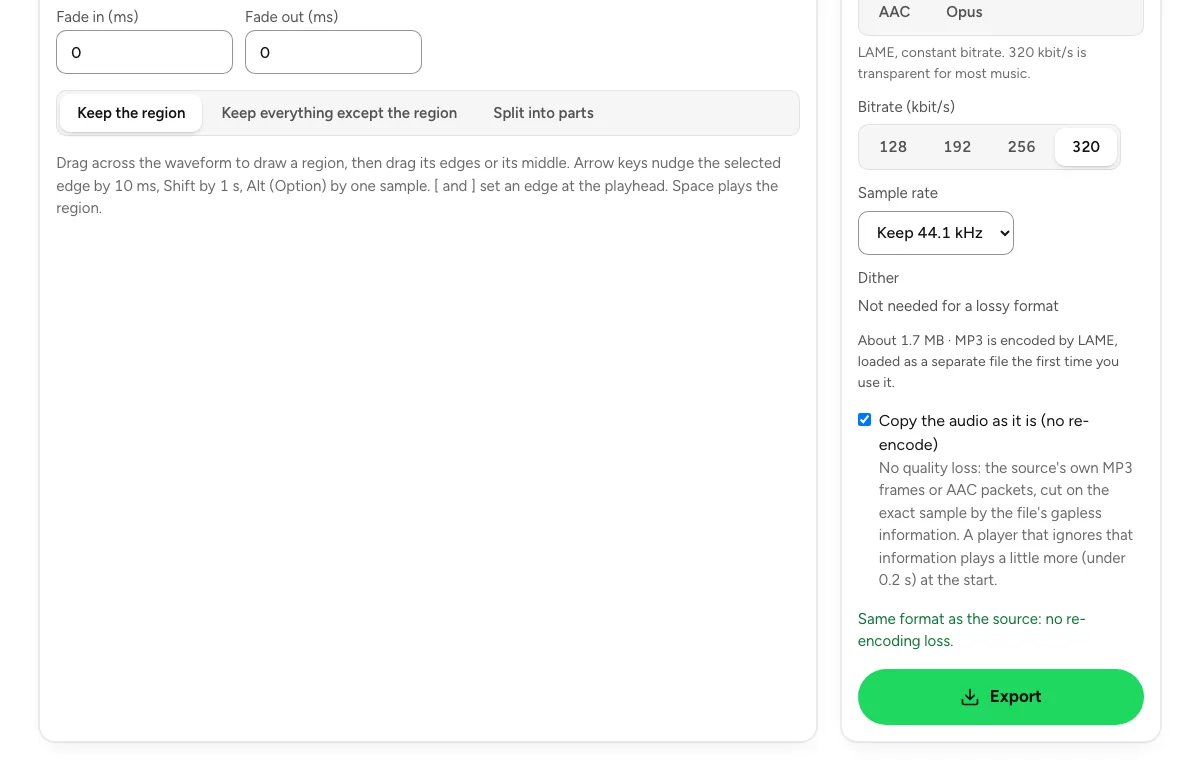
- Trim the ends. Count-ins and long silences come off with the audio cutter; a WAV, AIFF or FLAC exported in its own format stays sample-exact outside the fades.
- Tag the file. The metadata editor writes title, artist, album, cover art and ISRC into MP3, FLAC, WAV and M4A files, in batches, in your browser.
- Keep the report. The export report records the loudness and true peak of exactly what you delivered.
Last updated Nov 4, 2026. The figures here come from our own measurements, written up on each tool's page. When a tool changes, this page is checked again.